

Worldpay users can have unlimited user on the portal. To add additional users, please login to your admin account on the Worldpay portal and use the instructions below. To set up multilocation cross user access, please reach out to the Mosaic Success team.
Click Add User to complete user creation.
Stripe users can have additional users on the portal. To create a new user, an existing connected account user will need to log in and perform the steps provided here.
How can I delete my Mosaic account? :
For Stripe users please contact Stripe support: https://support.stripe.com/?contact=true
For Worldpay users, please submit your request to our merchant support team via email: merchantsupport@caterease.com.
How do I update the email address for my Mosaic account? :
For Worldpay users, please adjust your username in settings on the portal. More information here: User Profile
For Stripe users, the email address can be updated from the online dashboard. If you experience any issues with logging in to do this, you can contact Stripe support for further assistance or request a Transfer of Ownership.
For JPMorgan users, please
For Worldpay users, please submit your request to our merchant support team.
For Worldpay users, please adjust your username a settings on the portal. More information here: User Profile
For JPMorgan users, log in to the portal. On the Settings tab, specify a new email address. A confirmation link will be sent to the new email address. Once activated, the account email address will be updated.
The booking contact is not required but necessary to start an Mosaic payment link and save a card to file. You can manage this setting under Administration > General > Required Fields.
For Worldpay Partnerships: Once a dispute is filed, it requires prompt action on your part via the portal. Use the guides below to learn how to manage Disputes proactively and responsively:
For Stripe Partnerships: Dispute handling is overviewed in complete detail here. Our platform uses direct charges and is not liable for the loss, so this process should be handled by you directly. You are responsible for providing evidence during the dispute window and if the dispute is lost, funds will be taken out of your Stripe account balance. For additional details, please see url:
Respond to disputes | Stripe Documentation
Dispute reason code categories | Stripe Documentation
Managing Disputes is a critical part of any Merchant business and it’s important to understand the terms and workflows associated with transaction Disputes.
Below are some terms you’ll frequently encounter throughout the Dispute Management section
How am I notified of disputes and chargeback updates?
For Worldpay Partnerships: You can set up email notifications on the Worldpay portal to receive notice when a dispute is filed and updates occur in the Chargeback process, furthermore:
For Stripe Partnerships: Stripe will notify your dashboard of any disputes and chargebacks. These can be handled using Stripe’s best practices.
You can set up emailed notifications on the Worldpay portal to receive notice when a dispute is filed and updates occur in the Chargeback process, furthermore:
A Dispute and a Chargeback are two distinct processes related to payment disputes. Both listed processes above require prompt response from your team with compelling evidence (such as BEO, conversations with the payor) provided to support their transaction’s validity.
A Chargeback occurs when a cardholder bypasses the Merchant entirely to dispute the transaction with their issuer or credit card company to reverse a transaction. Chargebacks are typically more formal and can also incur additional fees from a Merchant perspective. Chargebacks are typically initiated due to claims of fraud, or failure to receive goods or services. From your perspective, there are three stages:
| Retrieval | The initial request from the Issuer to the Merchant for transaction information. |
| Chargeback | The process of each individual Dispute action from First Chargeback to Arbitration. |
| Resolution | The final decision made by the Issuer for the Merchant or Cardholder to receive full, partial or no credit. |
A Dispute occurs when a customer is questioning a transaction with their issuing bank or credit card company, typically due to concerns raised around unauthorized charges, billing errors, or overall dissatisfaction with a product or service. This can be a formal process initiated through their issuer or credit card company during the preliminary Chargeback proceeding or an informal process where concerns are raised by the cardholder directly and discussed with the Merchant to seek a resolution.
For Worldpay Partnerships: Chargebacks can be viewed and challenged on the online portal. Funds will be held from the HPay account balance according to standard processing partner procedure.
For Stripe Partnerships: Users can refer to the detailed information available here https://support.stripe.com/topics/disputes
You can send a payment link electronically using Mosaic: Creating and Sending Payment Links . The customer can use the link to submit payment and opt to store the card for future use in Caterease. Note that a payment link can only be associated with one payee.
Our Mosaic Worldpay partners have pivoted to automated learning tools to help make risk reviews more streamlined. Sometimes, when a large individual transaction is submitted (especially when first starting to process), the Worldpay risk team will flag the transaction for additional review and may request information to clear the review and lessen the chance of future reviews, which you can submit to the Mosaic team, as outlined here.
For Stripe Partnerships: There are rare instances where a larger transaction can pose a heightened risk exposure, and should be reviewed for fraud, delivery window risk, and overall chargeback risk. This review serves as a last line of defense to intervene on possible high risk transfers that are on their way to the merchant that could result in a major loss. The goal of these reviews is to identify large transfers and take action to mitigate malicious merchant behavior, loss, and Stripe’s chargeback rate. This could occur if a transaction triggered our internal fraud models based on their transaction history in Stripe ecosystem or other factors that caused us to deem this payment as risky. If a transaction was flagged, you would typically receive an error message or decline when attempting to process a payment. This error should provide you with more details on why this issue occurred but you can always contact support if the error does not provide sufficient details.
Sometimes, your bank can block fees withdrawals or deposits from your Mosaic account to your linked bank account. To ensure all funds transfer smoothly between your Mosaic and linked bank account, please call your bank and request the following IDs to have any blocks removed:
For Worldpay Partnerships:
1310281170
1043575881
For Stripe Partnerships:
1800948598
4270465600
Once complete, please let the Mosaic team know as soon as possible so our partners can retrigger any deposits or fee collections that may be outstanding due to the previous block.
Worldpay funding schedules are listed as follows:
Card Payment Transaction Funding Timeline: Card payment transaction funds are sent to the Merchant’s bank account the next business day after the transaction is processed. Transaction funds are deposited by ACH to the Merchant’s linked bank account and are typically available the morning after the withdrawal is created, although can take up to 48 hours depending on the speed at which the linked bank processes ACH transactions:
| Transaction Batch Close | Withdrawal Created | Bank Account Deposit |
| Monday | Tuesday | Wednesday morning |
| Tuesday | Wednesday | Thursday morning |
| Wednesday | Thursday | Friday morning |
| Thursday | Friday | Monday morning |
| Friday | Monday | Tuesday morning |
| Saturday | Monday | Tuesday morning |
| Sunday | Monday | Tuesday morning |
More details can be found in this link: https://resource.payrix.com/resources/funding-outline-api-guide and clarifications on naming of transaction statuses can be found here: https://resource.payrix.com/resources/payrix-transaction-statuses-timeline
ECheck Payment Transaction Funding Timeline:
| Transaction Batch Close | FBO Account Funded | Bank Account Deposit |
| Monday | Thursday* | Friday morning |
| Tuesday | Friday* | Monday morning |
| Wednesday | Monday* | Monday morning |
| Thursday | Tuesday* | Tuesday morning |
| Friday | Wednesday* | Thursday morning |
| Saturday | Wednesday* | Thursday morning |
| Sunday | Wednesday* | Thursday morning |
* This timeline is based on the earliest possible funding time for eChecks (3 business days). Please note that eChecks can take up to 5 business days to complete settlement to fund the Merchant FBO account for later withdrawal.
More information can be found here: https://resource.payrix.com/resources/funding-outline-api-guide#TransactionFunding-eCheckPaymentTransactionFundingTimeline
For Stripe Partnerships:
Funding timelines can vary by merchant and what you have set up for processing times. By default, processing time for transactions to appear in their Stripe account is 3 business days from the credit card transaction date, and depends on whether or not the transaction falls after the cutoff time at roughly 8 pm EST. For ACH transactions, the settlement time is 4 business days.
What information should I provide to verify transactions?
For Worldpay Partnerships: You can provide to our Merchant Support team (merchantsupport@caterease.com) an invoice or banquet event order of the held transaction, your business website, your role, and 3-6 months of bank statements of your linked bank account to quantify anticipated monthly payment volume to help lessen the chance of future reviews and to clear any outstanding reviews.
For Stripe Partnerships: Should there be any requirements needed to remove a restriction placed on an account, Stripe will send an email to the connected account holder and notify them in the Stripe online dashboard what is required to be unblocked.
You can provide to our Merchant support team an invoice of the transaction held, your business website, your role, and 3-6 months of bank statements of your linked bank account to quantify anticipated monthly payment volume to help lessen the chance of future reviews and to clear any outstanding reviews.
Please contacting our Merchant Support team, including the transaction’s ID found under the transaction’s details in the Portal and your Merchant name and ID. You may also provide additional information to verify transactions and lessen future review chances.
For Worldpay Partnerships: Our payment partners may delay your transaction up to 3 business days for a standard risk review to ensure fraud protection. This is common in the initial stages of processing as they learn about your processing habits. Should any information be requested to clear the review, our partners will reach out to you directly to the business email listed on your Mosaic account.
For Stripe Partnerships: If a transaction has not settled within 3 business days, contact Stripe support team via your Stripe Dashboard for further assistance.
Mosaic Worldpay users do not have on by default email notifications for payment events (such as successful captures, chargebacks, etc). To turn on and adjust the recipients and type of email notifications sent to your team for payment events, please login to the online portal’s “email alerts” section, more information can be found here.
Mosaic Stripe users do not have default email notifications for payment events. To turn on and adjust the recipients and type of email notifications sent to your team for payment events, please login to the online portal’s communication preferences. More information can be found here.
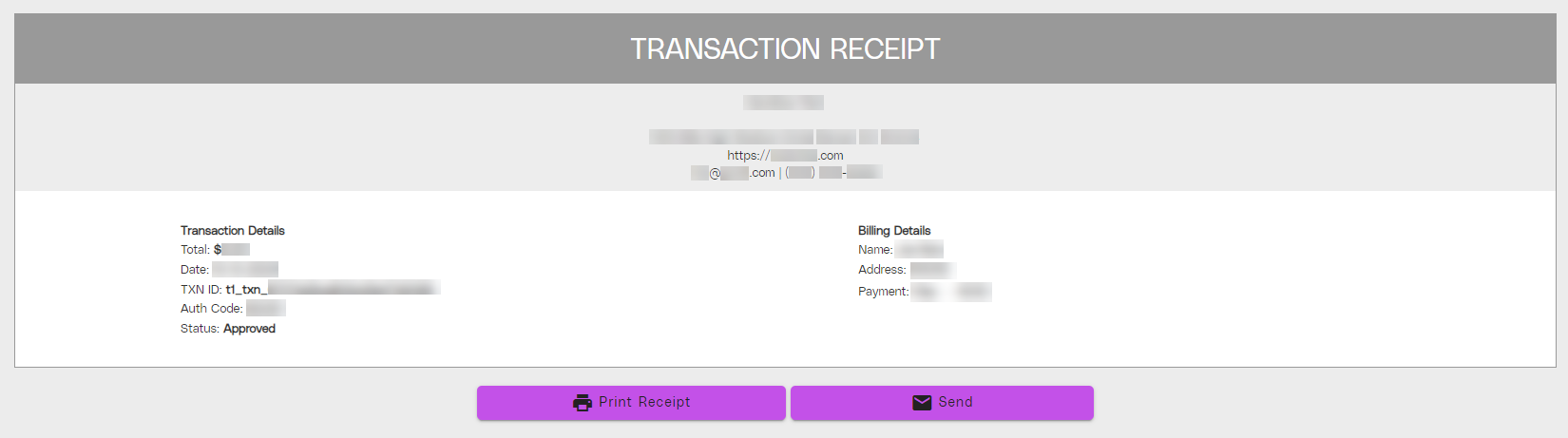
How can I create a payment receipt pdf?
For Worldpay Partnerships: On the portal, the Transaction Receipt page contains documentation of a specific transaction made with a customer, as well as a printable and downloadable receipt for the transaction.
For Stripe Partnerships:
On the portal, the Transaction Receipt page contains documentation of a specific transaction made with a customer, as well as a printable and downloadable receipt for the transaction.
To access the Transaction Receipt page:
For Worldpay Partnerships: Although it depends on your business needs, we highly recommend that your team enable the email alerts in the Mosaic portal for “transaction returned”. You can also enable the notifications for “transaction captured”, “transaction settled”, and “transaction failed”, depending on your payment volume.
“Transaction Returned” is highly recommend as when an ACH or eCheck transaction “bounces” or is returned, Caterease does not automatically update the status of payment record, as the transaction is considered completed. Enabling the “transaction returned” email notifications gives you proactive notice to manually update the status of the payment record in Caterease and recollect the payment (after of course verifying in the portal the transaction indeed has been returned).
Furthermore it’s important to note: a “captured transaction” notification is triggered immediately when your customer submits their payment information, but it doesn’t guarantee that the payment will be successful. The transaction may either “fail” or successfully “settle” after capture completes settlement in roughly one business day. Please be aware that for every “captured” notification, you will also receive a “duplicate” email notice for the same transaction once it has either “settled” or “failed”, as these processes are all unique.
More details on enabling these email notifications on Worldpay’s Mosaic Portal can be found here.
For Stripe Mosaic Users: Please refer to their email notification documentation here.
Your clients should automatically receive payment receipt emails when their payment is successfully captured.
Your client does not receive payment receipt emails, we recommend adjusting your Mosaic settings so such that in your Mosaic Settings, the payment link’s “Reply Email” is “noreply@paymentsbyhorizon.com” You can learn how to adjust this setting here.
For Worldpay Partnerships: Yes, multiple emails can be specified as recipients for various payment events in the online portal’s “email alerts” section. More information can be found here.
For Stripe Partnerships: Each team member can choose to receive or opt out of receiving any of the default notifications.
WorldPay: You can set up email notifications when a payment is successfully “settled” in the online portal’s “email alerts” section. More information can be found here.
Stripe: You can set up email notifications when a payment is “sucessfull” in the online portal’s “communication preferences” section. More information can be found here.
Yes, when your client submits payment information, they get an automatic emailed receipt. Please know that this receipt only shows the payment was submitted, and does not guarantee the transaction was successfully processed.
Mosaic Worldpay users can set up email notifications for various transactions events in their online portal’s “email alerts” section; they are not on by default. More information can be found here. Your customers automatically receive emailed payment receipts upon submitting their payment details for a transaction; this does not need to be set up.
The Email Alerts page on the portal contains information about email notifications that are sent to your team. On this page, you can configure which types of actions will trigger an email alert and determine who receives the notifications.
The Email Alerts page is divided into sections containing email alerts related to a specific type of event. In each section, several specific alerts are displayed. Provided that the alert is enabled, a notification will be received by any recipient listed for the specific alert function(s) found in each tab.
To use the alert toggles, follow the instructions below:
Mosaic Stripe users can set up email notifications by clicking here.
Mosaic WorldPay ACH deposits into linked deposit bank accounts are initiated nightly on weekdays. ACH transactions settle depending on your bank’s processing speed. Credit card transactions processed up until 9:30 pm ET that day change from a pending to a captured status. Captured transactions are then included in nightly weekday ACH deposits to the linked bank account.
For Stripe users, once a payout is initiated from the Stripe balance it should take 3 business days to reach a bank account.
Please know that ACH payments collected from payers across both partnerships take longer to settle than credit card transactions and vary on the speed of their linked banks’ processing time.
After a payment is processed and you have updated links by clicking “unprocessed links” in the bottom left corner of Caterease, links will update in the Caterease event and dashboard. Please know that the Worldpay Portal or Stripe Dashboard give the most up to date status of payments, and if a payment in Caterease does not match a payment status in the online Portal or Dashboard, a manual refresh of the link may be needed in Caterease. This manual refresh process is outlined in step 2 of our Troubleshooting guide.
No—fraud can’t be fully prevented, but careful monitoring and good payment practices greatly reduce risk.
For more information, please visit the following link: https://docs.stripe.com/disputes/prevention
Review and reach out to merchant support to confirm and assist with a resolution.
Our processing portals use verification tools such as CVC checks, address checks, and Stripe uses 3D Secure to prevent fraud.
Watch for mismatched billing and shipping info, unusually large or rushed orders, repeated failed attempts, or many small test transactions.
Fraud happens when someone makes an unauthorized or illegitimate transaction—like using a stolen card or disputing a valid charge (“friendly fraud”).
How do I login to the Mosaic Portal?
WorldPay users can login with your Portal credentials at mosaic.horizoncloud.com. If you do not know your username, please reach out to our HPay Customer Success team contact merchantsupport@caterease.com
Stripe users can login with your Dashboard credentials at dashboard.stripe.com.If you do not know your password, please reset using the forgot password link on the login pages and know the link in the reset email expires 20 minutes after its receipt.If you do not know your username, please contact the Stripe support team using support.stripe.com/?contact=true
What is the URL for the Mosaic portal?
The Worldpay Partner Mosaic portal can be accessed at https://hpay.horizoncloud.com/. For help resources, visit Worldpay Portal Help Center.
The Stripe Dashboard can be accessed at https://dashboard.stripe.com/dashboard. For help resources, visit Stripe Portal Help Center
The Worldpay Partner Mosaic portal can be accessed at https://mosaic.horizoncloud.com/. For help resources, visit Worldpay Portal Help Center.
The Stripe Dashboard can be accessed at https://dashboard.stripe.com/dashboard. For help resources, visit Stripe Portal Help Center
For additional questions or further assistance, please reach out to HPay support via the provided contact methods on our website: https://www.caterease.com/hpay-support-contacts/
Please contact help@caterease.com for technical issues and merchantsupport@caterease.com for funds-related situations or general questions and concerns.
Please provide the payee’s name, date, amount, and event number associated with the transaction. If possible, please also provide the Transaction ID listed on the portal.
How can I insert a payment link into an email template?
Create a payment link, turn off “Send automatic email,” and insert the payment link button/hyperlink in your Caterease email template. For detailed instructions, watch this video: Inserting a Payment Link into an Email Template.
You can watch the recorded training video here and sign up for the Mosaic class here. Our help website has extensive documentation on how to use Mosaic in Caterease: Mosaic Payment Processing
You can find the latest enhancements and features on our website: Latest Features (caterease.com)
For Mosaic Worldpay users, the portal allows you to schedule certain reports for recurring email delivery. The Disbursement Txn Details report can be scheduled as a recurring report and sent to your accounting or internal teammates you designate.
The Disbursement Txn Details report provides a breakdown of the sales and refunds included in a processed disbursement. It can include information such as:
The report will be generated automatically according to the selected schedule and emailed to the listed recipients.
You can also create and download the report at any time.
The reports and scheduling options visible in the portal can depend on your user role and access permissions. If you do not see the Scheduled Reports tab or the Disbursement Txn Details report, contact Mosaic Merchant Support for assistance reviewing your portal access.
Reports larger than 24 MB cannot be attached to an email. When this occurs, the completed report will be available from the portal’s Report History page instead.
The Disbursement Txn Details report focuses on the sales and refunds included in the disbursement. For a broader review of a payout, including fees, disputes, and other adjustments, you may also want to use the Disbursement Summary and Balance Details reports.
How do I process a payment manually with Mosaic?
You can process payments directly using Mosaic, whether using a card on file or a new card. Detailed instructions are available here: Processing a Payment with Mosaic
Your clients should automatically receive payment receipt emails when their payment is successfully captured.
Your client does not receive payment receipt emails, we recommend adjusting your Mosaic settings so such that in your Mosaic Settings, the payment link’s “Reply Email” is “noreply@paymentsbyhorizon.com” You can learn how to adjust this setting here.
WorldPay: You can set up email notifications when a payment is successfully “settled” in the online portal’s “email alerts” section. More information can be found here.
Stripe: You can set up email notifications when a payment is “sucessfull” in the online portal’s “communication preferences” section. More information can be found here.
Yes, when your client submits payment information, they get an automatic emailed receipt. Please know that this receipt only shows the payment was submitted, and does not guarantee the transaction was successfully processed.
For Worldpay users, follow these steps on the portal:
For Stripe users, the admin email and payer receive an emailed receipt from notifications@stripe.com
For our Mosaic Worldpay Partnerships, please login to the portal and navigate to the left side of the page, click Reports -> Create Reports. The three most popular reports are the Transaction Detail, Balance Detail, and Monthly Statements. More information on each report can be found under the “Report Features” section here
For our Mosaic Stripe Partnerships, please learn more about reporting here.
Worldpay: Reports time frames have a maximum of 30 days.
Stripe: Merchants can export all of their payment data through these steps in their dashboard.
Yes, a different card will be stored as a new stored card.
For Worldpay: Detailed instructions can be found here: Quick Charge and Create Payment.
For Stripe: Yes, merchants can process payments from the dashboard. When viewing the dashboard there is an option to create a payment link or one time invoice that can be used to collect payments from customers.
Users can check the client record in Caterease to see if there is a stored card.
Worldpay merchants can set up email notifications for various events by logging into the PayRix portal, navigating to the email alerts tab, turning on the desired notifications, and adding emails for these notices. More information can be found here: Email Alerts Setup.
Stripe merchants receive email notifications when set up in “communication preferences”. More information can be found here.
Refunds can be processed for payments made through Mosaic. Partial refunds are also acceptable. More details can be found here: Refunding a Payment with Mosaic. The refund will be processed within 7 days, and electronic refunds are only available for refunds collected within 60 days. If payments were processed more than 60 days ago, refunds can be done though paper check.
You can review the generic Mosaic Terms & Conditions here: https://mosaic.horizoncloud.com/terms?id=g1680658dd528ff
This agreement includes Mosaic’s standard terms, standard processing rates, and all listed fees that may apply to your account and should be used as the general reference for Mosaic Terms & Conditions, rates, and fees.
If your account is on a custom rate structure, your pricing may differ from the standard rates listed in the agreement, and you can reach out to our Merchant Support team (merchantsupport@caterease.com) to confirm.
Method 1: Disable American Express: Amex has the highest interchange, often up to 6%. Total fees on Amex transactions can reach ~7%. If Amex is not critical for your business, turning it off can significantly reduce costs
You can disable Amex in your Mosaic settings here: https://support-mosaic.com/docs/mosaic/getting-started/signing-up/
Method 2: Enable Credit Card Surcharging (Up to 3%): Allows you to pass up to 3% of the credit card cost to customers. Helps offset a large portion of your processing expense. Some states restrict or limit surcharging
Setup instructions: https://support-mosaic.com/docs/mosaic/enabling-payment-surcharges/
Method 3: If you qualify, request a rate adjustment
Once you’ve generated your Statement Detail Report, some fee names can look confusing because they’re labeled internally. Here’s how to interpret them simply:
Step 1: Look at the “Description” column (This is the most important column.)
“Capture fee schedule” are Mosaic platform fees
“Interchange fee schedule” are Card network interchange fees (set by Visa, Mastercard, etc.)
Step 2: Understand Your Card Processing Fees: Your standard card rate is: 1.25% + $0.10 + interchange
Here’s how that shows up in the report:
Interchange Fees (Pass-Through)
The four “Interchange Fee” line items are charged by the card networks and vary by card type. They also include L2 / L3 CIO interchange fees, which applies only to business or corporate cards.
Where to Find Your Mosaic Contract & Rates: You can view your Mosaic contract (including your fee breakdowns) in either of the following places:
Option 1: In Caterease
Option 2: In the Mosaic Portal
remove the “Generating Detailed Fees Statements” and replace with
Generating your Fee Statements”
There are two different fee reports in the portal, and they serve different purposes:
1) Monthly Statement (Summary View)
2) Statement Detail Report (Most Accurate)
If you’re ever reconciling fees or questioning totals, always use the Statement Detail report.
For Worldpay Partnerships:
Reports page on your Mosaic Worldpay portal contains a set of reports that can help you gather information and measure performance indicators about your business, including your Statement Details Report breaking down your monthly processing fees.
The Statement Details Report provides precise and accurate fee information detailing a comprehensive breakdown of fees. To access the Statement Details Report, login to your Mosaic portal, click Reports in the Admin category of the left navigation panel, and click on the Standard Reports Tab, selecting Statement Details Report in the dropdown.
Note the Monthly Statement’ summary Report tab report provides similar details; however the ‘Monthly Statement’ is not a bill breakdown but a business recap. The difference between the two is that the Statement Details Report accounts for values of “sub-cents”, but these fees are not included in the Transaction Details Report.
For Stripe Partnerships:
The balance summary report is available on Stripe through the dashboard; this shows the total of fees for a period.
Authorize deposits and withdrawals from Mosaic to your bank
Sometimes, your bank can block fees withdrawals or deposits from your Mosaic account to your linked bank account. To ensure all funds transfer smoothly between your Mosaic and linked bank account, please call your bank and request the following IDs to have any blocks removed:
Worldpay:
1310281170
1043575881
Stripe:
1800948598
4270465600
Once complete, please let the Mosaic team know as soon as possible so our partners can retrigger any deposits or fee collections that may be outstanding due to the previous block.
Sometimes, your bank can block fees withdrawals or deposits from your Mosaic account to your linked bank account. To ensure all funds transfer smoothly between your Mosaic and linked bank account, please call your bank and request the following IDs to have any blocks removed:
For Worldpay Partnerships:
1310281170
1043575881
For Stripe Partnerships:
1800948598
4270465600
Once complete, please let the Mosaic team know as soon as possible so our partners can retrigger any deposits or fee collections that may be outstanding due to the previous block.
Custom rate packages are offered based on the average volume processed per month over the past six months. If you reach a processing threshold of $150k/month consistently for 3 months, please contact our Merchant Support team for review.
Worldpay uses an interchange-plus pricing structure (IC+). Credit card transactions incur a fee of 1.25% plus $0.10 per transaction, in addition to the card’s interchange fee. Debit cards follow a similar structure but generally have lower interchange fees. ACH transactions are charged 1.00% plus $0.25 per transaction.
Interchange rates vary widely by card network, card type, and issuing bank. Card networks typically publish updated interchange rates twice a year. The general 2026 interchange estimates by payment type are listed below.
Please note that the ranges below are not the total Worldpay Mosaic credit card fees. They are broad estimates of only the interchange portion of the rate.
| Card Brand | Typical General Interchange Range |
|---|---|
| Visa | Approximately 1.50%–3.15%, usually plus a per-transaction fee |
| Mastercard | Approximately 1.65%–3.25%, usually plus a per-transaction fee |
| American Express | Approximately 1.45%–3.50% in wholesale or discount costs |
| Discover | Approximately 1.56%–2.40%, usually plus approximately $0.10 per transaction |
| ACH | ACH transactions do not have card interchange fees |
These ranges are suitable as broad estimates against total volume. Actual interchange rates depend on factors such as the card’s rewards level, commercial versus consumer card classification, transaction method, merchant category, qualification level, and ticket size.
Mosaic Stripe users are on a blended-rate structure. Current Mosaic rates for U.S. and Canadian users are as follows:
United States
Visa, Mastercard, and Discover: 4.75%
American Express: 5.00%
ACH: 1.00% plus $0.25 per transaction
Canada
Credit cards: 3.50% plus $0.15 per transaction
Electronic Funds Transfers are not currently available.
US Stripe rates: Visa, Mastercard, and Discovery: 4.75%, Amex: 5%, ACH 1% + $0.25 CAN Stripe rates are: 3.5% + $0.15
How can I request a call to discuss Mosaic?
You are welcome to request a call with our Merchant Support team. Please schedule bookings call with the following link: https://outlook.office365.com/book/HpayCustomerSuccess@horizonbusinessservices.com/?ismsaljsauthenabled=true
To contact the Caterease Helpdesk use the following:
Phone number 239.261.6617
Email: help@caterease.com
Store credit cards on file for your contacts through the Caterease HPay Integration. More information is available here: Storing Credit Cards for Contact People
1. Open the Mosaic Payment Link Manager in Caterease by clicking in Caterease the Select ribbon tab at the top of the screen and choosing More > Payment Link Manager.
2. Locate the payment link’s event using the search or filter options to find the specific event for which you want to retrieve the payment link. Events are typically listed by name, date, or client.
3. Right-Click the correct Event to display a context menu with several options.
4: In the context menu, select the option to copy the payment link URL. The url will by copied to your clipboard, ready to be pasted into an email to our Help team to further investigate any situations associated with the link.
For Worldpay Partnerships: The credit card rate can be higher than our base processing rate of 1.25% because we use an IC+ structure, which is our rate of 1.25% plus the interchange rate of the card used to process. Interchange rates can vary widely depending on the card type and card holder your client uses and are updated twice a year. For example, American Express (AmEx) has notoriously high interchange rates, so in your Mosaic setting, we give you the option to not accept Amex. To also help you recoup some of the interchange fees and lower your overall processing rate, we allow automatic surcharging* up to 3% you can enable: Enabling Payment Surcharges
*surcharging not available to organizations based in CT,MA, ME, OK, and up to 2% in CO
For Stripe Partnerships: Stripe uses a blended rate structure. The key difference between blended rate and Interchange Plus (IC+) rate structures lies in how fees are presented and charged in credit card processing. A blended rate is a single, flat percentage fee (and sometimes a per-transaction fee) regardless of card type or brand. With the IC+ rate you pay the actual interchange fee (set by Visa, Mastercard, etc.) plus a fixed processor markup.
Request Support (help@caterease.com) to enable push notifications in Caterease so link statuses update automatically when they change in HPay. With push enabled the Update Unprocessed Links button is removed and there is no queue of updates to review. Use the Generating the Accounts Receivable Report to track collected payments.
If you suspect a payment showing the wrong status, please confirm with the Mosaic portal and attempt to resync, contacting support should these not facilitate.
How to confirm status
Check the corresponding transaction’s details page on the online portal for the real time transaction status.
Compare it to the Event Payments section in Caterease.
How to fix it yourself
First, attempt to resync in Caterease:
If the record still does not match
Email help@caterease.com with the following information so our team can request a backend resync.
• Event number
• Amount
• Payment date
• Transaction ID from the Mosaic portal
During rare, brief Mosaic payments service outages, links can fall offline and out of sync, not displaying the most up to date status shown on the Mosaic Partner Portal, and will need to be manually updated by Support. Payments also collected while a payment link shows the “Pending” status in Caterease yet that is expired (not updated to reflect that it is expired) can also become unsynced and offline. In both cases, this can cause the Caterease event to not reflect the true Mosaic portal status until it is resynced.
Who might be affected
Events with payments created or collected during or right after a brief Mosaic outage.
Events where a payer completed checkout while the link in Caterease still showed Pending but had already expired.
Why you may notice an uptick
After a brief Mosaic outage, link updates can lag. Links nearing expiration are the most likely to mismatch until resynced.
When to contact support right away
You see paid in the portal and expired or pending in Caterease after running the update steps (see Troubleshooting Payment Record in Caterease Showing wrong Status)
You see multiple events from the same timeframe with mismatches.
Send the details listed above so we can sync them.
When receiving an error message in Caterease related to Mosaic or a payment link is not updating, use the steps below to expedite your resolution. If the situation continues, contact merchantsupport@caterease.com with your Caterease Serial number (see below), describing your situation, what you’d like to happen instead, relevant event numbers & payment amounts, and include screenshots of error messages.
1. Check Your Caterease Version
Make sure you are using the latest version of Caterease if you use the Desktop version of Caterease (if a Caterease Connect user, continue)
2. Update Payment Status for Payment Link Issues
If a payment link isn’t updating properly or shows a status different then the portal:

3. Remove Special Characters from Your Mosaic Details
If you see an error when creating a payment link:
4. International Card Payments
If you’re accepting an international credit card:
5. Issues with Stored Credit Cards
If you can’t process a payment using a stored card:
6. Payment Links Not Being Received
If your customers are not receiving their payment link email:
First, check if a duplicate payment exists on the portal and it’s status before issuing a refund through the portal.
1) login to your Online Portal
2) access your “Transaction History” tab on the left
3) adjust the date range to “this quarter” or a custom range, and enter the payment amount in the search bar (or the last 4 digits of the card)
4) see if there are duplicated records
a) if there are duplicates, click on the more recent transaction, then click on the “refund” button in the upper left (click “cancel” if not settled)
b) If there is not a duplicate payment in the portal, but shows as a duplicate in the Caterease event, verify in Caterease the transaction ID in the payments are identical and you can delete one of the Caterease payment records.
NOTE: We recommend only refunding duplicate transaction via the portal, and any other payments regularly through Caterease as the records do no automatic sync to Caterease should a payment be adjusted via the portal.
Duplicate payments can occur if there’s an interruption while the transaction is processing, such as a customer clicking the pay button more than once, going back and forward in the browser, or opening two payment windows and pressing the submit button in both. In nearly all cases, a duplicate transaction captured less than five minutes apart indicates a payer-initiated interruption.
Should any payment status not match the portal in these duplicated situations, we also recommend manually resyncing the status by updating the payment links in the event manually as shown in the steps below. Should the record still not update after the manual resync, please reach out to help@caterease.com with the event number and transaction ID (found on the portal) for our developers to sync:

We recommend only refunding duplicated transaction or other records that do not have a record in Caterease through the portal. Any other payment should be refunded regularly through Caterease as records adjusted via the portal do no automatic update Caterease.
To refund:
1) login to your Online Portal
2) access your “Transaction History” tab on the left
3) Locate the transaction that does not have a records in Caterease by adjusting the date range to “this quarter” or a custom range, and entering in the payment amount in the search bar (or the last 4 digits of the card)
5) click on transaction, then click on the “refund” button in the upper left if the transaction is settled, otherwise click the “cancel” button
Duplicate payments can occur if there’s an interruption while the transaction is processing, such as a customer clicking the pay button more than once, going back and forward in the browser, or opening two payment windows and pressing the submit button in both. In nearly all cases, a duplicate transaction captured less than five minutes apart indicates a payer-initiated interruption.
Should any payment status not match the portal in these duplicated situations, we also recommend manually resyncing the status by updating the payment links in the event manually as shown in the steps below. Should the record still not update after the manual resync, please reach out to help@caterease.com with the event number and transaction ID (found on the portal) for our developers to sync:
Deposit failures often occur due to the absence of bank account information or blocked fee withdrawals. Login to the portal to ensure your bank account information is up to date.
Should you still experience issues, please reach out to the Merchant Support team.
Change the reply email address in your H-Pay setup to noreply@paymentsbyhorizon.com to ensure clients’ email servers do not block payment links sent by SendGrid. You can also update the Payment Link Invoice template to include your return email address.
Follow these steps:
Workstations will auto-update when run. Please reach out to help@caterease.com for more information and the update file.