Mosaic Support

Mosaic Support Videos

Processing Payments with Mosaic

Processing Payments with Mosaic
wistia-player[media-id='xm969684fl']:not(:defined) { background: center / contain no-repeat url('https://fast.wistia.com/embed/medias/idvwwhuf7k/swatch'); display: block; filter: blur(5px); padding-top:50.21%; }

Including a Payment Surcharge on Card Payments

Including a Payment Surcharge on Card Payments

Refunding a Payment to a Credit Card

Refunding a Payment to a Credit Card​

Customizing the Payment Window

Customizing the Payment Window

Automatically Updating Event Status When Posting Payments

Automatically Updating Event Status When Posting Payments​

Processing a Payment with a Tokenized Credit Card

Processing a Payment with a Tokenized Credit Card

Including Payments or Deposits Due on Event Prints

Including Payments or Deposits Due on Event Prints

Reviewing Payment Failures in an Event or Order

Reviewing Payment Failures in an Event or Order

Posting Multiple Payments for a Client

Posting Multiple Payments for a Client​

Tracking Payment Transactions with Mosaic

Tracking Payment Transactions with Mosaic

Mosaic Guidebook

Mosaic Guidebook​

Setting Up Mosaic Payment Processing

Getting Started with Mosaic

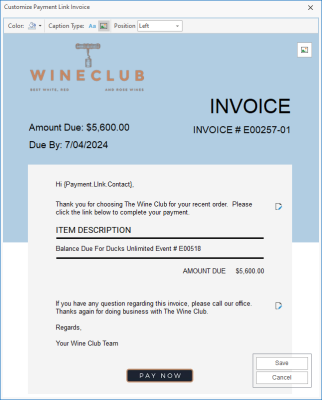
Mosaic payment processing allows you to process credit card or electronic check payments directly through Caterease or send customizable emails to customers for them to pay online. The handy “Authorize Link” option also allows your customers to simply enter valid card information to be held for future use, or even authorize a hold on funds to be collected (by you through Caterease) at a later date.

Signing Up for Mosaic

Signing Up for Mosaic
1. In the Administration ribbon tab at the top of the screen, click the Options button and choose Interface Setup Wizard.
Result: The Interface Setup Wizard opens.
2. Click the Credit Card tab on the right side of the Interface Setup Wizard.
3. Click the Hpay icon
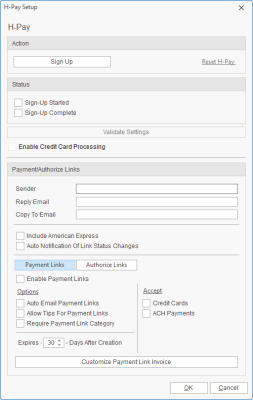
Result: The HPay Setup window opens.
4. Click the Sign Up button on the Mosaic Setup window.

Result: The Mosaic Sign Up Wizard opens on Step 1, the Legal Entity Information screen.
Note: This information defaults from the Company Information area of your program. If you are a multi-location enterprise, see the blue highlight below.
Multi-location enterprises sharing one or more legal entities do one of the following:
  • If this is the first location to sign up for HPay, enter details of your corporate legal entity on this window.
  • If a legal entity has already been created for this corporation, its details will default here. If you want to enter an alternate legal entity, clear the Use Existing Legal Entity check box and enter new details
  • If multiple legal entities have been created for your corporation, the details of the most commonly-used legal entity will default here - but a different existing legal entity can be selected by clicking the Select Legal Entity button on the right side of this window.
Note: A confirmation email will be sent to the email address listed on this Legal Entity Information screen to complete this process below. If you do not have access to that address, you will need to request permission to complete the setup process.
5. Enter a First and Last name of a primary contact for your business and click Next at the bottom right of the wizard screen.
Result: The wizard moves to Step 2, where you enter information about your specific business location.
Note: Basic and address information here will default from the Company Information area of your program.
6. Fill out any remaining information on the Basic Business Information screen.
Note: Choose an appropriate Industry for your payment services, a Primary Contact at your location and the Description that will identify each charge on your customers' billing statements.
7. Click the Submit button at the bottom of the window.
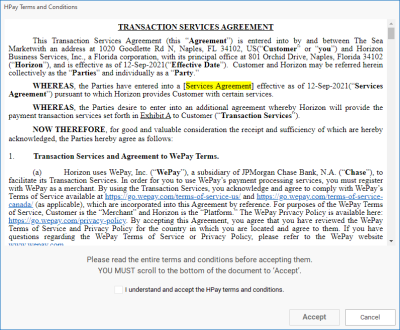
Result: The Mosaic Transaction Services Agreement appears.
8. Scroll to the bottom of the agreement, click the checkbox at the bottom of the window and then click Accept if you accept the terms and conditions.
Result: A confirmation message appears and a confirmation email is sent to the email box listed in your Basic Business Information window.
Note: You must scroll to the bottom of the agreement text for the checkbox and Accept button to become active.
9. Click OK on the confirmation message, then retrieve the confirmation email and click Confirm there.
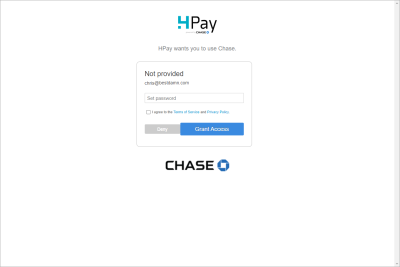
Result: Clicking Confirm in the confirmation email opens your browser on the Mosaic access page.
Note: Again, the email was sent to the email address included in the Basic Business Information in Steps 4 & 5, above.
10. On the browser page that opened, enter a password for your Mosaic access, click the checkbox to agree to the Terms of Service and then click Grant Access.
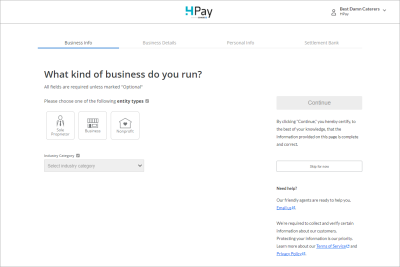
Result: The browser takes you to the Mosaic account setup screen.
11. On the Mosaic account setup screen, choose a business type that best defines your business ("Sole Proprietor", "Business" or "Nonprofit") and follow the onscreen prompts.
12. Click Continue on the right side of the screen to move to the next page of the online setup process.
Result: The setup screen moves to the Business Details page.
Note: The Continue button remains disabled until ALL information is filled out accurately.
13. Enter information on each subsequent screen as required, ultimately clicking Add Bank on the final page after adding banking information for your deposit account.
Result: You are logged into your Mosaic Merchant Dashboard.
14. Close your browser, return to your Caterease program and click the Validate Settings button in the middle of the HPay Setup window.
Result: A confirmation message appears.
15. Click OK.
16. Click the check box labeled Enable Credit Card Processing to enable processing for your program.
Note: Clicking this box is required to complete the process. If you do not want credit card processing enabled at this time, you can leave this box unchecked.
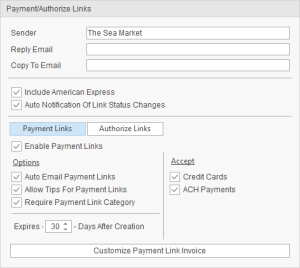
17. [Optional] Enable payment links as described here.
Tip: Optionally click the View Access Keys button at the top right of the HPay Setup window to see the Reference Number, Legal Entity Number and Account Number being used by this location.

Enabling Payment Surcharges

Enabling Payment Surcharges
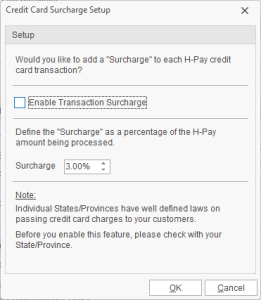
You can elect to charge customers a surcharge for all credit card payments processed through Mosaic.
Please Note: Individual states/provinces have well-defined laws concerning apply surcharges to card payments. Before you enable this feature, please familiarize yourself with the laws and restrictions in your state/province.
  1. Confirm laws in your state or province concerning payment surcharges.
2. Access your Mosaic Setup window by clicking the Administration ribbon tab at the top of the screen and clicking Mosaic > Mosaic Setup.

3. Click the words Surcharge Note Enabled.
Result: The Credit Card Surcharge Setup window appears.

4. In the pop-up window, enter a surcharge amount between a minimum of .25% and a maximum of 3%.

5. Click the check box labeled Enable Transaction Surcharge.

6. Click OK to close the pop-up window.

7. Click OK again to close the Mosaic Setup window.
Note: With surcharge enabled, your customer will enter credit card information for a payment or authorization link and then, prior to final submission, will see a follow-up screen indicating the surcharge and total payment amount.

Due to federal regulations, surcharging not available to organizations based in CT, MA, ME, OK, and up to 2% in CO

Storing Credit Cards for Contact People

Storing Credit Cards for Contact People
  1. Retrieve a contact person in Contact Manager (see Finding a Contact in Contact Manager).
  2. Click the Stored Credit Cards button  on the right side of the Contact Manager window. Result: The Credit Cards On File window appears.
  3. Click the Add Credit Card button  at the top left of the window. Result: The Mosaic credit card window appears.
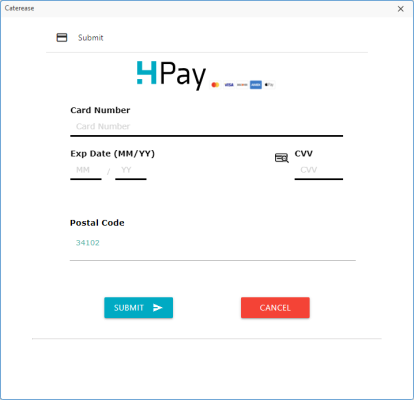
  1. Enter the appropriate card information (Card Number, Exp Date, CVV, Postal Code) and click Submit at the bottom of the window.
    Result: The card is stored and a confirmation message appears.
  2. Click OK to close the confirmation message and repeat Steps 3-5 as desired to add additional cards.
Tip: You can add cards to a contact person in Account Manager (see "Editing Contact Person Information" at Adding or Editing Contact People in an Account) or in Event Manager (see Editing Customer Information from an Event). You can also store credit cards while posting payment for an event, quick order or group room booking (see Processing a Payment with Mosaic).

Processing a Payment with Mosaic

Processing a Payment with Mosaic

Payments for events, quick orders or even group rooms contracts can be processed directly using Mosaic – whether using a card on file with an existing contact person or using a unique card and even a unique payment individual.

  1. Pull up a record in either Event Manager, Quick Order Manager or Guestrooms Manager.
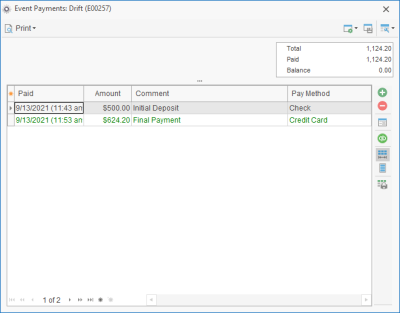
  2. Click the Payments Made button  in the tool bar along the right side of the manager screen. Result: The Payments window for that record appears.
  3. Click the Add Payment button  at the right side of the Payments window. Result: The Payment Details window appears.
  4. Enter payment details as desired.
  5. Click Process Credit Card at the top right of the Payment Details window and click Yes when prompted to save changes. Result: The Process Credit Card Transaction window appears.
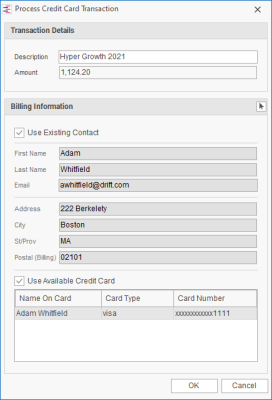
  1. Choose one of the following options:

    • If using the existing contact person and an existing card, confirm that information in the window and click OK to process the payment.

    • If using a different contact person with an existing card, click the Select From Contacts button  on the right side of the window and choose the desired contact and then click OK to process the payment.

    • If using an existing contact person and new card information, confirm that contact is selected as discussed in the bullet points above, uncheck the Use Available Credit Card check box at the bottom left of the window, click OK and move on to Step 7, below.

    • If using a new contact person with new card information, uncheck the Use Existing Contact check box, enter the new person’s details, click OK and move on to Step 7, below.

  2. If choosing the third or forth option above, enter the card information for the payment in the Mosaic window that appears and click Submit.
    Note: If entering new card information for an existing contact, you will be prompted to save that card on file for the future.

Tip: If processing a tip payment, see Adjusting a Tip for an Event or Quick Order

Adjusting a Tip for an Event or Quick Order

Adjusting a Tip for an Event or Quick Order

Tips can be included when a payment is added in the program or when your customer uses a payment link. Tips can also be added or adjusted on their own using the steps below.

Adding or Adjusting a Tip

Adding or Adjusting a Tip
  1. Pull up a record in either Event Manager or Quick Order Manager.
  2. Click the Tax Rates button  in the tool bar along the right side of the manager screen. Result: The Payments window for that record appears.
  3. Click the Add Payment button  at the right side of the Payments window. Result: The Tax Rates window appears.
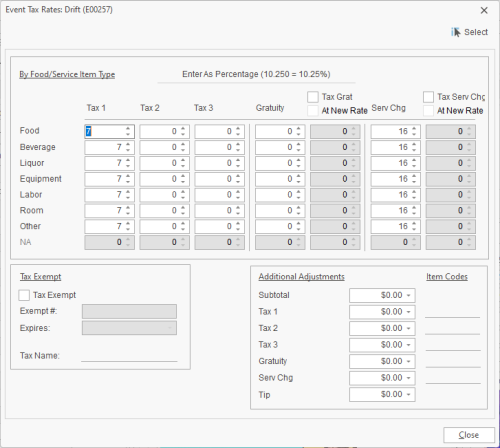
  1. Enter or adjust a tip amount into the Tip field at the bottom right of the display. Note: This field shows the total amount of all tips that have been added for all existing payments, as well as any adjustments you have already made.
  2. Click the Close button at the bottom right of the window. Result: The Tip amount for this event or quick order is adjusted and the Total of the record also adjusts to reflect the updated tip. Note: See section below for details of how to display the Tip field on the Event Manager screen.
  3. Process a payment for the tip amount as normal following the steps outlined in Processing a Payment with Mosaic.

Displaying the Tip Field in Event Manager
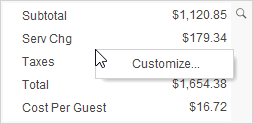
Displaying the Tip Field in Event Manager
  1. On your Event Manager or Quick Order Manager screen, right click over the Financial area at the top right of the window and choose Customize.
    Result: The Set Financial Display window appears.
  1. In the window that pops up, click the check box next to the Tip field. Result: The Tip field is now displayed in the Financial area of the manager screen.
  2. Close the Set Financial Display window.
  3. With the Tip field in position, click the Save Window Settings button  at the top right of the window to save this updated display as the new default for you or all users on your network.

Manually Authorizing an Existing or New Card

Manually Authorizing an Existing or New Card

You can authorize an existing credit card on file or add a new card to be used for future payment – either for a specific amount or to simply “validate” the card details. If authorizing for a specific amount, that amount will remain on hold for up to 7 days until you process the payment. This can be done from within a manager or even from a query results grid.

  1. In a query results grid or in the grid that appears long the left side of a manager screen, show the Authorized Credit Card column. Note: To display the Authorized Credit Card column, click the Quick Column Customizing button  at the top left of the grid (see Working with Grids.) If the column has a black icon , there is a card on file has been validated but has no payment amount; a yellow icon  indicates that a card has already been authorized for a certain amount and a green icon  indicates that an authorized payment has already been processed.
  2. Double-click in the Authorized Credit Card column next to any record. Result: the Credit Cards on File window opens. Note: As an alternative, you can click the Authorized Credit Cards button  in the tool bar along the right side of the Event Manager, Quick Order Manager or Guestrooms Manager screen. If the Authorized Credit Cards button is not available in the tool bar, see Customizing the Tools Menu and Tools Bar.
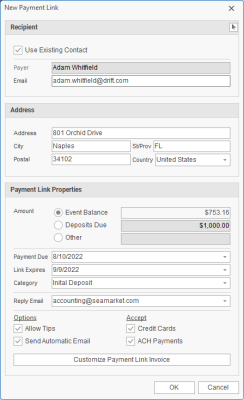
Click the Add Credit Card button  at the top left of the window. Result: The Authorize Credit Card window opens.
  1. At the top of the window, enter the amount to be authorized or choose “No Money” to simply validate a card for future payment.
    Note: If authorizing a specific amount, that amount will remain on hold for up to 7 days until you process the payment.

  2. Choose one of the following options:

    • If using the existing contact person and an existing card, confirm that information in the window and click OK to authorize the card.

    • If using a different contact person with an existing card, click the Select From Contacts button  on the right side of the window and choose the desired contact and then click OK to authorize the card.

    • If using an existing contact person and new card information, confirm that contact is selected as discussed in the bullet points above, uncheck the Use Available Credit Card check box at the bottom left of the window, click OK and move on to Step 6, below.

    • If using a new contact person with new card information, uncheck the Use Existing Contact check box, enter the new person’s details, click OK and move on to Step 6, below.

  3. If choosing the third or forth option above, enter the card information for the payment in the Mosaic window that appears and click Submit.

Posting a Payment with a Validated Card

Posting a Payment with a Validated Card

Payments for events, quick orders or even group rooms contracts can be processed directly using Mosaic – whether using a card on file with an existing contact person or using a unique card and even a unique payment individual. These payments can be made individually or in batch. (See Processing Multiple Payments in Batch.)

  1. Pull up a record in either Event Manager, Quick Order Manager or Guestrooms Manager.
  2. Click the Payments Made button  in the tool bar along the right side of the manager screen. Result: The Payments window for that record appears.
  3. Click the Add Payment button  at the right side of the Payments window. Result: The Payment Details window appears.
  4. Enter payment details as desired.
  5. Click Process Credit Card at the top right of the Payment Details window and click Yes when prompted to save changes. Result: The Process Credit Card Transaction window appears.
  1. At the bottom of the window, select the validated credit card you wish to use for payment. Note: Validated cards have a black check mark icon  to the left of them; cards on file for a customer have a small person icon  next to them.
  2. Click OK to process the payment using the selected card.

Processing Authorized Payments

Processing Authorized Payments

You can have your customers “pre-authorize” payments for their events, orders or group bookings and then process those payments at a future date individually or in batch. (See Processing Multiple Payments in Batch.)

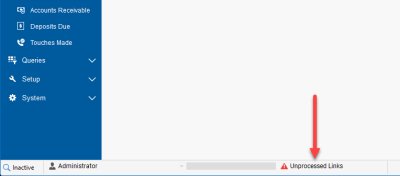
Note: To process an authorized payment, you must first have sent an Authorize Link Email and processed your unprocessed links.

Processing a Payment for Balance Due on an Authorized Card

Processing a Payment for Balance Due on an Authorized Card
  1. Pull up a record in either Event Manager, Quick Order Manager or Guestrooms Manager.
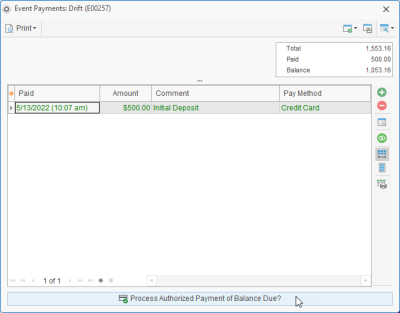
  2. Click the Payments Made button  in the tool bar at the right side of the window. Result: The Event Payments window opens.
  1. Click the Process Authorized Payment of Balance Due button along the bottom of the window.
    Note: If no button appears along the bottom of the window, no card has been authorized for this event, order or group booking. (Important Note: An “authorized” card is different from a “validated” card, which has not been approved for any payment amount.

  2. Click Yes at the confirmation window.
    Result: The total balance due of the event, order or group booking is placed on the authorized card.
    Note: If you have authorized multiple cards for this record, the most recently authorized card will be used. (Remember, “validated” cards are not considered here. See note above.)

  3. Click OK on the information message that appears

Processing an Authorized Amount on a Card

Processing an Authorized Amount on a Card
  1. Pull up a record in either Event Manager, Quick Order Manager or Guestrooms Manager.
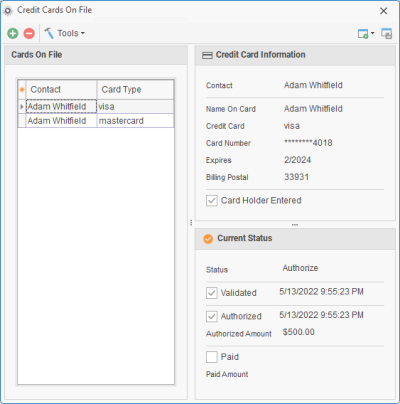
  2. Access the Credit Cards on File window in one of the following ways:
    • Click the Authorized Credit Cards button  in the tool bar along the right side of the manager screen. Note: If the Authorized Credit Cards button is not available in the tool bar, see Customizing the Tools Menu and Tools Bar. As an option, you can display the
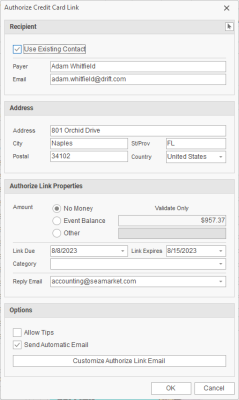
    • Double-click the yellow icon  in the Authorized Credit Card column of the manager’s grid. Note: To display the Authorized Credit Card column, click the Quick Column Customizing button  at the top left of the grid (see Working with Grids.) If the icon is black , the card on file has not been authorized for a specific amount; if there is no icon, no card has been authorized for that record.
  1. Select the authorized card you wish to process, click the Tools button at the top left of the window and choose Process Payment.
    Result: The Authorize window appears.
    Important Note: The amount indicated in this window will default to the balance due of the event. See Step 4, below, to adjust if desired.

  2. [Optional] Click the Switch button to the right of the Amount field to switch the amount to this card’s authorized amount or click in the Amount field and enter an amount at random.
    Result: The authorized amount (or any custom amount you enter) is filled into the Amount field.

  1. Click in the Description field and type an optional description for this payment.

  2. Click Yes to post the payment.

Processing Multiple Payments in Batch

Processing Multiple Payments in Batch

After you have authorized or validated credit cards for an event, quick order or group booking, you can process those payments in batch for an entire group of records.
Note: Payments processed in this manner will be for the full balance due, regardless of any authorized amount.

  1. Open the Event Query, Quick Order Query or Group Bookings Query to a see list of the appropriate records.

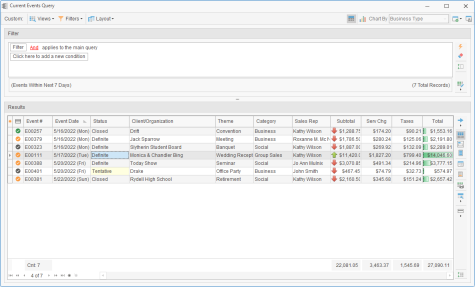
    Note: For events, you can also use the Current Events or Accounts Receivable query.

  2. [Optional] Filter the results grid to show the specific group of records you want to see.

    Note: For more information, see Filtering Grid Data .

  3. Display the Authorized Credit Cards column in the grid to see which records have authorized cards.

    Note: This step is not required to process payments, but it is helpful to see which records have authorized cards. If you select any records without authorized cards they will be automatically unselected when you attempt to process in Step 5, below. See Working with Grids for more information on customizing grid columns.

  1. Select all records for which you wish to process payment.

    Note: A green icon  in the Authorized Credit Cards column indicates that the authorized payment has already been processed; black  means the card is merely “Validated” (with no payment amount assigned) and yellow  means the card has been authorized for a specific payment. This process will only use this last two groups with the black or yellow symbol.

  2. Right click the group and choose Card Authorization > Process Balance Due Payment.

    Result: A confirmation message appears.

    Note: If you have selected records that do not have active “Validated” or “Authorized” cards – ones where the payment has already been processed (green icon in the Authorized Credit Cards column) or where there is no card on file (empty Authorized Credit Cards column) – you will be notified that those records have been unselected.

  3. Click Yes to process these cards for the full balances due of the corresponding events.
    Note: Batch payments are processed for the entire current balance due regardless of the authorized amount on the card.

Refunding a Payment with Mosaic

Refunding a Payment with Mosaic

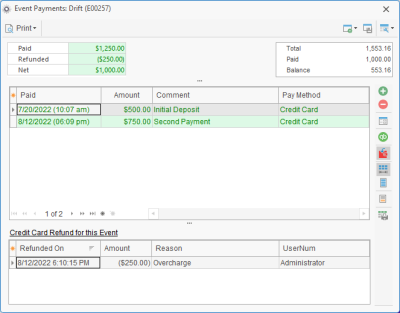
Any payment processed through our powerful Mosaic integration – whether done manually or via payment link – can be easily refunded.

  1. Pull up a record in either Event Manager, Quick Order Manager or Guestrooms Manager.
  2. Click the Payments Made button  in the tool bar along the right side of the manager screen.
    Result: The Payments window for that record appears.
  1. Select the specific payment to be refunded.
    Note: Successfully processed payments appear in green font on the Payments window, and are the only payments that can be refunded through Mosaic.
  2. Click the View/Edit Payment Details button  on the right side of the window.
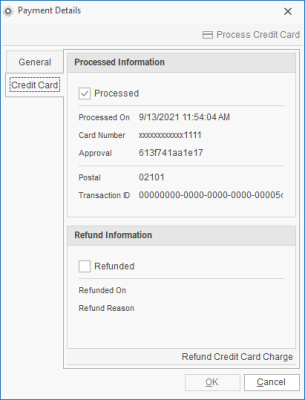
    Result: The Payment Details window appears for the selected payment.
  3. Click the Credit Card tab on the left side of the Payment Details window.
  1. Click Refund Credit Card Charge at the bottom right of the Payment Details window and click Yes to confirm your choice.
    Result: The Refund window appears.
  2. Enter an amount for the refund (partial refunds are acceptable) and reason for the refund (“Mistake”, “Overcharge”, etc.) and click OK.
    Result: The refund is processed and a confirmation message appears.
    Note: Refund “reasons” is a customizable quickpick list under your control (see Customizing Quickpick Lists).
  3. Click OK to close the confirmation window and Cancel to close the Payment Details window
  4. [Optional] To see a list of all refunds for this event listed at the bottom of this Event Payments window, click the Show Credit Card Refunds button  at the center-right of the window.
    Note: The total amount paid, total refunds and net remaining payment amount will be listed at the top left of the Payments Window as soon as any refunds are processed.
Tip: Refunds can be processed up to 60 days after a payment has been received.

Using the Mosaic Transaction Error Log

Using the Mosaic Transaction Error Log

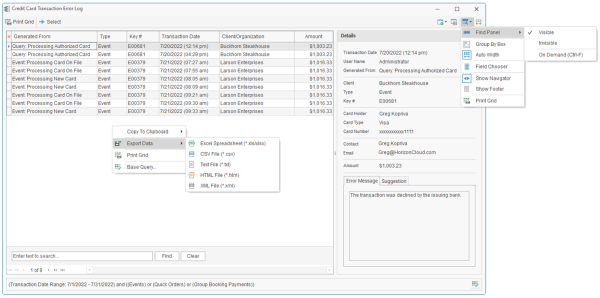
The Mosaic Transaction Error Log lets you review all errors on payments for any day or date range, and even offers suggestions as to how to rectify the error.

  1. In the Administration ribbon tab at the top of the screen, select Mosaic > Mosaic Transaction Error Log.
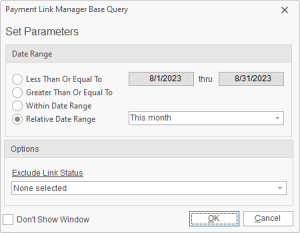
    Result: A parameters window appears.

  2. Enter the date range for which you want to track payment errors, or select a Relative Date Range from the available drop-down list.
    Note: You can change the parameters you establish here after running the error log query. See tip, below.

  3. Under Query Options, click the corresponding check boxes to include transaction errors from payments on EventsQuick OrdersGroup Bookings or any combination of the three.

  4. Click OK.
    Result: The Credit Card Transaction Error Log results window appears.

  1. Select any record listed in the grid and review its specific details along the right side of the screen – including the specific Error Message, a Description and a Suggestion of next steps.
  2. [Optional] Customize the columns appearing in the grid or sort and filter grid data as described in Working with Grids.
  3. [Optional] Click the Print Grid button at the top left of the window to print the error list, or click the Select button (also at the top left) to open the record (event, order or group booking) related to the currently selected failed transaction.
Tip: Click the Base Query button  in the bottom right corner of the error log window and choose Base Query to adjust the initial parameters (date range, etc.) you established in Steps 2 & 3, above.

Tracking Mosaic Payment Transactions

Tracking Mosaic Payment Transactions

The Mosaic Transaction Query helps simplify you reconciliation of Mosaic payment transactions and more accurately anticipate your daily (or monthly) deposits.

  1. Click the Queries sidebar on the left-hand side of your screen.
  2. Click the Mosaic Transaction Query button.
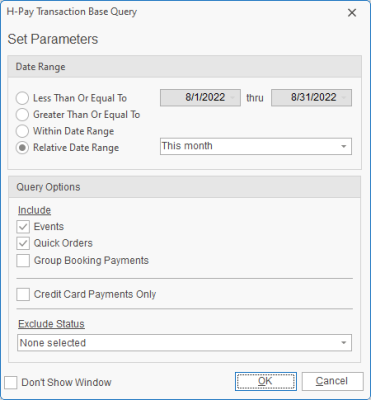
    Result: The Mosaic Transaction Base Query window opens.
  1. Set a Date Range for your query by choosing the option Less Than or Equal ToGreater Than or Equal To, or Within Date Range, or choose a Relative Date Range for the query.
  2. In the Query Options section, use the checkboxes to choose to include transactions from EventsQuick OrdersGroup Bookings or any combination of the three.
    Note: You must choose at LEAST one of these options.
  3. [Optional] Click the check box next to Credit Card Payments Only to include only payments processed through Mosaic for credit cards.
  4. [Optional] Click the down arrow to the right of the Exclude Status field to exclude events with certain statuses from appearing in the query results.
  5. When finished, click OK.
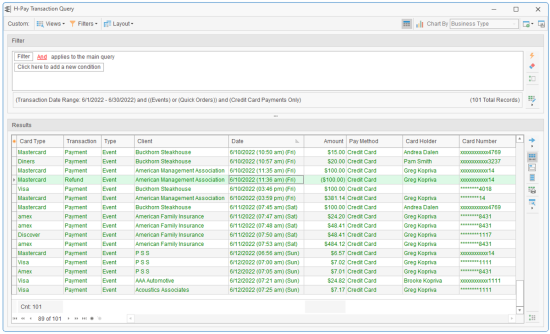
    Result: The Mosaic Transaction Query is generated.

Generating the Mosaic Processing Activity Report

Generating the Mosaic Processing Activity Report

This report offers up to four different sections related to sales and payment activity for a date or date range: a breakdown of all sales revenue by revenue type; a breakdown of all taxes by revenue type; a breakdown of payments by payment method; and a list of all individual payment transactions.

Tip: As an option, click the checkbox labeled Close After Printing at the bottom left of the tool to have this window close automatically as soon as your report has been printed.
  1. Click the Reports ribbon tab at the top of the screen.
  2. Click the Mosaic button and choose Processing Activity.
    Result: The Mosaic Processing Activity parameters window opens.
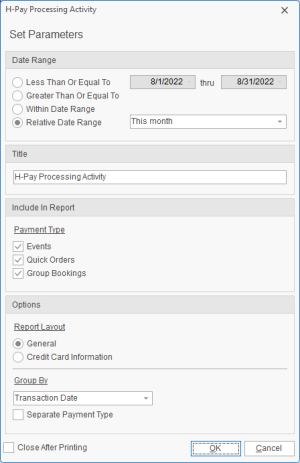
  1. Set a Date Range for your report by choosing the option Less Than or Equal ToGreater Than or Equal ToWithin Date Range, or choose a Relative Date Range for the report.
  2. [Optional] Change the title of the report by highlighting the words “Mosaic Processing Activity” and typing directly into the field.
  3. In the Payment Type section, click the check box next to any records (EventsQuick Orders or Group Bookings) for which you want details to appear on this report.
    Note: You must choose at LEAST one of these options. If you choose more than one, the Separate Payment Type option is enabled at the bottom of the parameter window allowing you to have payments for each “type” (Events, Quick Orders, Group Bookings) sorted together in the report.
  4. In the Report Layout section, choose a “General” layout (including general payment details such as payment Category, event Business Type and User who processed the payment) or a “Credit Card Information” layout (including such things as Credit Card Status, Card Holder, Card Type, last four of Card Number and Approval Code.)
  5. Click the down arrow under Group By and choose to group the report by a specific detail.
  6. When finished, click OK.
    Result: The Mosaic Processing Activity Report is generated, incorporating the parameters you established.

Generating the Mosaic Sales Summary Report

Generating the Mosaic Sales Summary Report

This report offers up to four different sections related to sales and payment activity for a date or date range: a breakdown of all sales revenue by revenue type; a breakdown of all taxes by revenue type; a breakdown of payments by payment method; and a list of all individual payment transactions.

Tip: As an option, click the checkbox labeled Close After Printing at the bottom left of the tool to have this window close automatically as soon as your report has been printed.

  1. Click the Reports ribbon tab at the top of the screen.
  2. Click the Mosaic button and choose Sales Summary.
    Result: The Mosaic Sales Summary parameters window opens.
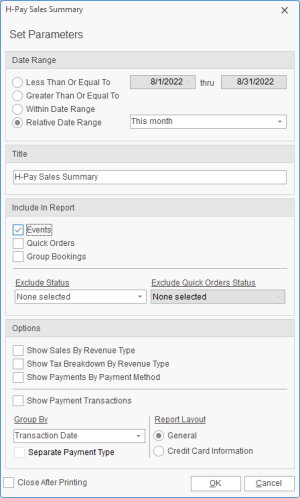
  1. Set a Date Range for your report by choosing the option Less Than or Equal ToGreater Than or Equal ToWithin Date Range, or choose a Relative Date Range for the report.
  2. [Optional] Change the title of the report by highlighting the words “Mosaic Sales Summary” and typing directly into the field.
  3. In the Include In Report section, click the check box next to any records (EventsQuick Orders or Group Bookings) for which you want details to appear on this report.
    Note: You must choose at LEAST one of these options. If you choose more than one, the Separate Payment Type option is enabled at the bottom of the parameter window allowing you to have payments for each “type” (Events, Quick Orders, Group Bookings) sorted together in the Payment Transactions list at the bottom of the report.
  4. [Optional] Click the down arrow to the right of the Exclude Status or Exclude Quick Order Status field and select any event or quick order statuses you would like excluded from your query.
    Note: Placing a check in a box causes the tool to exclude records with that status from your results.
  5. In the Options section at the bottom of the parameters window, choose whether or not to include any of the following sections on the report:
    • Show Sales by Revenue Type
      Includes a section breaking down all sales revenue for the date range by revenue type (“Food”, “Beverage”, etc.).
    • Show Tax Breakdown by Revenue Type
      Includes a breakdown showing tax revenue for the date range by revenue type (“Food”, “Beverage”, etc.).
    • Show Payments by Payment Method
      Includes a section breaking down all payments by method of payment (“Credit Card”, “Check”, etc.).
    • Show Payment Transactions
      Includes a section at the bottom of the report listing all payment transaction details for the date range.
      Note: This section can either show “General” details or “Credit Card Information” (see Step 9, below), and can optionally sort records for each payment type (Events, Quick Orders, Group Bookings) separately (see Step 5, above).
  6. If showing the list of payment transactions (see bullet above), click the down arrow under Group By and choose to group that list by a specific detail.
  7. If showing the list of payment transactions, use the Report Layout section to choose a “General” layout (including general payment details such as payment Category, event Business Type and User who processed the payment) or a “Credit Card Information” layout (including such things as Credit Card Status, Card Holder, Card Type, last four of Card Number and Approval Code.)
  8. When finished, click OK.
    Result: The Mosaic Sales Summary Report is generated, incorporating the parameters you established.

Using the Mosaic Portal

Using the Mosaic Portal

The Mosaic Portal, through Chase Bank™, gives you keen insight into the specific statuses of all processed payments.

Tracking Payment Information in the Mosaic Portal

Tracking Payment Information in the Mosaic Portal

Click the Administration ribbon tab at the top of your screen and choose Mosaic > Mosaic Customer Portal.
Result: Your browser opens on the login screen for the Mosaic Customer Portal.

Enter the email address associated to your Mosaic Setup (see Setting Up Mosaic Payment Processing) and appropriate password and click Log In.
Result: Your company’s customer portal opens.
Note: If you have not yet established a password for this account you will be prompted to do so.

[Optional] At the right side of the portal window, click the down arrow next to Time Period to alternately view details from TodayYesterdayLast 7 Days or Month to Date.

[Optional] To review details of a specific payment, click that payment in the Activity grid.
Note: It is not recommended that you issue a refund from the Mosaic portal, as that refund will not be recorded in your Caterease program.

[Optional] To review specific types of transactions (Fees, Disputes, Deposits, etc.) click the View option associated to that section.

Adding Users to Your Mosaic Portal

Adding Users to Your Mosaic Portal
  1. Log into your Mosaic Portal as an Owner/Administrator using the steps listed above.

  2. Click the Settings button on the left side of the screen.

  1. Scroll down to the Members section and click Add additional members to your account.

  2. At the top of the screen, enter the email address of the new user you want to add and click Invite.
    Result: The new users is added to the user list with a status of “Pending” and an invitation is sent to the email address you provided.

  3. Instruct the new user to click Join in the email invitation and fill out the information (First/Last Name, Password) on the Sign Up form.
    Result: Once the new user fills out the Sign Up form, he or she will be logged into the Mosaic Portal.

Tip: Only an Administrator can invite new users to access the portal. All new users will have a Moderator roll.

Removing a User from the Mosaic Portal

Removing a User from the Mosaic Portal
  1. Log into your Mosaic Portal as an Owner/Administrator using the steps listed above.

  2. Click the Settings button on the left side of the screen.

  1. Scroll down to the Members section and click Add additional members to your account.
  2. Click the Delete button  to the right of any user name.
    Result: The corresponding user is removed.
    Note: Users other than the Administrator can only remove themselves from the list.

Live Training Registration

Mosaic Support Contacts

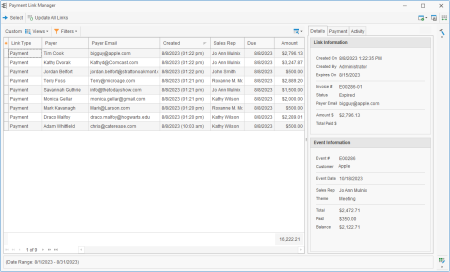
Our powerful Mosaic payment processing tool allows you to easily store credit cards on file for your clients, process payments within Caterease and also send payment links allowing customers to make payments online.

Mosaic Rates

Mosaic Rates

Mosaic Support Videos

Processing Payments with Mosaic

Processing Payments with Mosaic
wistia-player[media-id='xm969684fl']:not(:defined) { background: center / contain no-repeat url('https://fast.wistia.com/embed/medias/idvwwhuf7k/swatch'); display: block; filter: blur(5px); padding-top:50.21%; }

Including a Payment Surcharge on Card Payments

Including a Payment Surcharge on Card Payments

Refunding a Payment to a Credit Card

Refunding a Payment to a Credit Card​

Customizing the Payment Window

Customizing the Payment Window

Automatically Updating Event Status When Posting Payments

Automatically Updating Event Status When Posting Payments​

Processing a Payment with a Tokenized Credit Card

Processing a Payment with a Tokenized Credit Card

Including Payments or Deposits Due on Event Prints

Including Payments or Deposits Due on Event Prints

Reviewing Payment Failures in an Event or Order

Reviewing Payment Failures in an Event or Order

Posting Multiple Payments for a Client

Posting Multiple Payments for a Client​

Tracking Payment Transactions with Mosaic

Tracking Payment Transactions with Mosaic

Processing Payments with Mosaic

Processing Payments with Mosaic
wistia-player[media-id='xm969684fl']:not(:defined) { background: center / contain no-repeat url('https://fast.wistia.com/embed/medias/idvwwhuf7k/swatch'); display: block; filter: blur(5px); padding-top:50.21%; }

Mosaic Guidebook

Mosaic Guidebook​

Setting Up Mosaic Payment Processing

Getting Started with Mosaic

Mosaic payment processing allows you to process credit card or electronic check payments directly through Caterease or send customizable emails to customers for them to pay online. The handy “Authorize Link” option also allows your customers to simply enter valid card information to be held for future use, or even authorize a hold on funds to be collected (by you through Caterease) at a later date.

Signing Up for Mosaic

Signing Up for Mosaic
1. In the Administration ribbon tab at the top of the screen, click the Options button and choose Interface Setup Wizard.
Result: The Interface Setup Wizard opens.
2. Click the Credit Card tab on the right side of the Interface Setup Wizard.
3. Click the Hpay icon
Result: The HPay Setup window opens.
4. Click the Sign Up button on the Mosaic Setup window.

Result: The Mosaic Sign Up Wizard opens on Step 1, the Legal Entity Information screen.
Note: This information defaults from the Company Information area of your program. If you are a multi-location enterprise, see the blue highlight below.
Multi-location enterprises sharing one or more legal entities do one of the following:
  • If this is the first location to sign up for HPay, enter details of your corporate legal entity on this window.
  • If a legal entity has already been created for this corporation, its details will default here. If you want to enter an alternate legal entity, clear the Use Existing Legal Entity check box and enter new details
  • If multiple legal entities have been created for your corporation, the details of the most commonly-used legal entity will default here - but a different existing legal entity can be selected by clicking the Select Legal Entity button on the right side of this window.
Note: A confirmation email will be sent to the email address listed on this Legal Entity Information screen to complete this process below. If you do not have access to that address, you will need to request permission to complete the setup process.
5. Enter a First and Last name of a primary contact for your business and click Next at the bottom right of the wizard screen.
Result: The wizard moves to Step 2, where you enter information about your specific business location.
Note: Basic and address information here will default from the Company Information area of your program.
6. Fill out any remaining information on the Basic Business Information screen.
Note: Choose an appropriate Industry for your payment services, a Primary Contact at your location and the Description that will identify each charge on your customers' billing statements.
7. Click the Submit button at the bottom of the window.
Result: The Mosaic Transaction Services Agreement appears.
8. Scroll to the bottom of the agreement, click the checkbox at the bottom of the window and then click Accept if you accept the terms and conditions.
Result: A confirmation message appears and a confirmation email is sent to the email box listed in your Basic Business Information window.
Note: You must scroll to the bottom of the agreement text for the checkbox and Accept button to become active.
9. Click OK on the confirmation message, then retrieve the confirmation email and click Confirm there.
Result: Clicking Confirm in the confirmation email opens your browser on the Mosaic access page.
Note: Again, the email was sent to the email address included in the Basic Business Information in Steps 4 & 5, above.
10. On the browser page that opened, enter a password for your Mosaic access, click the checkbox to agree to the Terms of Service and then click Grant Access.
Result: The browser takes you to the Mosaic account setup screen.
11. On the Mosaic account setup screen, choose a business type that best defines your business ("Sole Proprietor", "Business" or "Nonprofit") and follow the onscreen prompts.
12. Click Continue on the right side of the screen to move to the next page of the online setup process.
Result: The setup screen moves to the Business Details page.
Note: The Continue button remains disabled until ALL information is filled out accurately.
13. Enter information on each subsequent screen as required, ultimately clicking Add Bank on the final page after adding banking information for your deposit account.
Result: You are logged into your Mosaic Merchant Dashboard.
14. Close your browser, return to your Caterease program and click the Validate Settings button in the middle of the HPay Setup window.
Result: A confirmation message appears.
15. Click OK.
16. Click the check box labeled Enable Credit Card Processing to enable processing for your program.
Note: Clicking this box is required to complete the process. If you do not want credit card processing enabled at this time, you can leave this box unchecked.
17. [Optional] Enable payment links as described here.
Tip: Optionally click the View Access Keys button at the top right of the HPay Setup window to see the Reference Number, Legal Entity Number and Account Number being used by this location.

Including a Payment Surcharge on Card Payments

Including a Payment Surcharge on Card Payments

Enabling Payment Surcharges

Enabling Payment Surcharges
You can elect to charge customers a surcharge for all credit card payments processed through Mosaic.
Please Note: Individual states/provinces have well-defined laws concerning apply surcharges to card payments. Before you enable this feature, please familiarize yourself with the laws and restrictions in your state/province.
  1. Confirm laws in your state or province concerning payment surcharges.
2. Access your Mosaic Setup window by clicking the Administration ribbon tab at the top of the screen and clicking Mosaic > Mosaic Setup.

3. Click the words Surcharge Note Enabled.
Result: The Credit Card Surcharge Setup window appears.

4. In the pop-up window, enter a surcharge amount between a minimum of .25% and a maximum of 3%.

5. Click the check box labeled Enable Transaction Surcharge.

6. Click OK to close the pop-up window.

7. Click OK again to close the Mosaic Setup window.
Note: With surcharge enabled, your customer will enter credit card information for a payment or authorization link and then, prior to final submission, will see a follow-up screen indicating the surcharge and total payment amount.

Due to federal regulations, surcharging not available to organizations based in CT, MA, ME, OK, and up to 2% in CO

Storing Credit Cards for Contact People

Storing Credit Cards for Contact People
  1. Retrieve a contact person in Contact Manager (see Finding a Contact in Contact Manager).
  2. Click the Stored Credit Cards button  on the right side of the Contact Manager window. Result: The Credit Cards On File window appears.
  3. Click the Add Credit Card button  at the top left of the window. Result: The Mosaic credit card window appears.
  1. Enter the appropriate card information (Card Number, Exp Date, CVV, Postal Code) and click Submit at the bottom of the window.
    Result: The card is stored and a confirmation message appears.
  2. Click OK to close the confirmation message and repeat Steps 3-5 as desired to add additional cards.
Tip: You can add cards to a contact person in Account Manager (see "Editing Contact Person Information" at Adding or Editing Contact People in an Account) or in Event Manager (see Editing Customer Information from an Event). You can also store credit cards while posting payment for an event, quick order or group room booking (see Processing a Payment with Mosaic).

Processing a Payment with Mosaic

Processing a Payment with Mosaic

Payments for events, quick orders or even group rooms contracts can be processed directly using Mosaic – whether using a card on file with an existing contact person or using a unique card and even a unique payment individual.

  1. Pull up a record in either Event Manager, Quick Order Manager or Guestrooms Manager.
  2. Click the Payments Made button  in the tool bar along the right side of the manager screen. Result: The Payments window for that record appears.
  3. Click the Add Payment button  at the right side of the Payments window. Result: The Payment Details window appears.
  4. Enter payment details as desired.
  5. Click Process Credit Card at the top right of the Payment Details window and click Yes when prompted to save changes. Result: The Process Credit Card Transaction window appears.
  1. Choose one of the following options:

    • If using the existing contact person and an existing card, confirm that information in the window and click OK to process the payment.

    • If using a different contact person with an existing card, click the Select From Contacts button  on the right side of the window and choose the desired contact and then click OK to process the payment.

    • If using an existing contact person and new card information, confirm that contact is selected as discussed in the bullet points above, uncheck the Use Available Credit Card check box at the bottom left of the window, click OK and move on to Step 7, below.

    • If using a new contact person with new card information, uncheck the Use Existing Contact check box, enter the new person’s details, click OK and move on to Step 7, below.

  2. If choosing the third or forth option above, enter the card information for the payment in the Mosaic window that appears and click Submit.
    Note: If entering new card information for an existing contact, you will be prompted to save that card on file for the future.

Tip: If processing a tip payment, see Adjusting a Tip for an Event or Quick Order

Adjusting a Tip for an Event or Quick Order

Adjusting a Tip for an Event or Quick Order

Tips can be included when a payment is added in the program or when your customer uses a payment link. Tips can also be added or adjusted on their own using the steps below.

Adding or Adjusting a Tip

Adding or Adjusting a Tip
  1. Pull up a record in either Event Manager or Quick Order Manager.
  2. Click the Tax Rates button  in the tool bar along the right side of the manager screen. Result: The Payments window for that record appears.
  3. Click the Add Payment button  at the right side of the Payments window. Result: The Tax Rates window appears.
  1. Enter or adjust a tip amount into the Tip field at the bottom right of the display. Note: This field shows the total amount of all tips that have been added for all existing payments, as well as any adjustments you have already made.
  2. Click the Close button at the bottom right of the window. Result: The Tip amount for this event or quick order is adjusted and the Total of the record also adjusts to reflect the updated tip. Note: See section below for details of how to display the Tip field on the Event Manager screen.
  3. Process a payment for the tip amount as normal following the steps outlined in Processing a Payment with Mosaic.

Displaying the Tip Field in Event Manager

Displaying the Tip Field in Event Manager
  1. On your Event Manager or Quick Order Manager screen, right click over the Financial area at the top right of the window and choose Customize.
    Result: The Set Financial Display window appears.
  1. In the window that pops up, click the check box next to the Tip field. Result: The Tip field is now displayed in the Financial area of the manager screen.
  2. Close the Set Financial Display window.
  3. With the Tip field in position, click the Save Window Settings button  at the top right of the window to save this updated display as the new default for you or all users on your network.

Refunding a Payment to a Credit Card

Refunding a Payment to a Credit Card​

Manually Authorizing an Existing or New Card

Manually Authorizing an Existing or New Card

You can authorize an existing credit card on file or add a new card to be used for future payment – either for a specific amount or to simply “validate” the card details. If authorizing for a specific amount, that amount will remain on hold for up to 7 days until you process the payment. This can be done from within a manager or even from a query results grid.

  1. In a query results grid or in the grid that appears long the left side of a manager screen, show the Authorized Credit Card column. Note: To display the Authorized Credit Card column, click the Quick Column Customizing button  at the top left of the grid (see Working with Grids.) If the column has a black icon , there is a card on file has been validated but has no payment amount; a yellow icon  indicates that a card has already been authorized for a certain amount and a green icon  indicates that an authorized payment has already been processed.
  2. Double-click in the Authorized Credit Card column next to any record. Result: the Credit Cards on File window opens. Note: As an alternative, you can click the Authorized Credit Cards button  in the tool bar along the right side of the Event Manager, Quick Order Manager or Guestrooms Manager screen. If the Authorized Credit Cards button is not available in the tool bar, see Customizing the Tools Menu and Tools Bar.
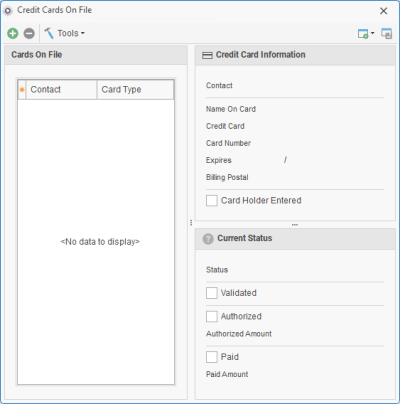
Click the Add Credit Card button  at the top left of the window. Result: The Authorize Credit Card window opens.
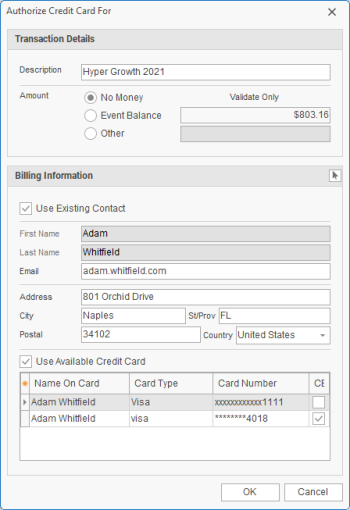
  1. At the top of the window, enter the amount to be authorized or choose “No Money” to simply validate a card for future payment.
    Note: If authorizing a specific amount, that amount will remain on hold for up to 7 days until you process the payment.

  2. Choose one of the following options:

    • If using the existing contact person and an existing card, confirm that information in the window and click OK to authorize the card.

    • If using a different contact person with an existing card, click the Select From Contacts button  on the right side of the window and choose the desired contact and then click OK to authorize the card.

    • If using an existing contact person and new card information, confirm that contact is selected as discussed in the bullet points above, uncheck the Use Available Credit Card check box at the bottom left of the window, click OK and move on to Step 6, below.

    • If using a new contact person with new card information, uncheck the Use Existing Contact check box, enter the new person’s details, click OK and move on to Step 6, below.

  3. If choosing the third or forth option above, enter the card information for the payment in the Mosaic window that appears and click Submit.

Customizing the Payment Window

Customizing the Payment Window

Automatically Updating Event Status When Posting Payments

Automatically Updating Event Status When Posting Payments​

Posting a Payment with a Validated Card

Posting a Payment with a Validated Card

Payments for events, quick orders or even group rooms contracts can be processed directly using Mosaic – whether using a card on file with an existing contact person or using a unique card and even a unique payment individual. These payments can be made individually or in batch. (See Processing Multiple Payments in Batch.)

  1. Pull up a record in either Event Manager, Quick Order Manager or Guestrooms Manager.
  2. Click the Payments Made button  in the tool bar along the right side of the manager screen. Result: The Payments window for that record appears.
  3. Click the Add Payment button  at the right side of the Payments window. Result: The Payment Details window appears.
  4. Enter payment details as desired.
  5. Click Process Credit Card at the top right of the Payment Details window and click Yes when prompted to save changes. Result: The Process Credit Card Transaction window appears.
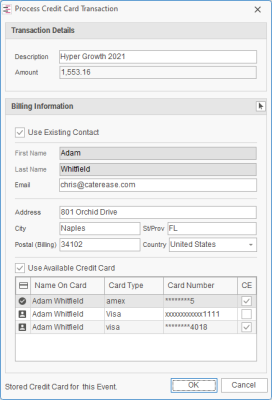
  1. At the bottom of the window, select the validated credit card you wish to use for payment. Note: Validated cards have a black check mark icon  to the left of them; cards on file for a customer have a small person icon  next to them.
  2. Click OK to process the payment using the selected card.

Processing Authorized Payments

Processing Authorized Payments

You can have your customers “pre-authorize” payments for their events, orders or group bookings and then process those payments at a future date individually or in batch. (See Processing Multiple Payments in Batch.)

Note: To process an authorized payment, you must first have sent an Authorize Link Email and processed your unprocessed links.

Processing a Payment for Balance Due on an Authorized Card

Processing a Payment for Balance Due on an Authorized Card
  1. Pull up a record in either Event Manager, Quick Order Manager or Guestrooms Manager.
  2. Click the Payments Made button  in the tool bar at the right side of the window. Result: The Event Payments window opens.
  1. Click the Process Authorized Payment of Balance Due button along the bottom of the window.
    Note: If no button appears along the bottom of the window, no card has been authorized for this event, order or group booking. (Important Note: An “authorized” card is different from a “validated” card, which has not been approved for any payment amount.

  2. Click Yes at the confirmation window.
    Result: The total balance due of the event, order or group booking is placed on the authorized card.
    Note: If you have authorized multiple cards for this record, the most recently authorized card will be used. (Remember, “validated” cards are not considered here. See note above.)

  3. Click OK on the information message that appears

Processing an Authorized Amount on a Card

Processing an Authorized Amount on a Card
  1. Pull up a record in either Event Manager, Quick Order Manager or Guestrooms Manager.
  2. Access the Credit Cards on File window in one of the following ways:
    • Click the Authorized Credit Cards button  in the tool bar along the right side of the manager screen. Note: If the Authorized Credit Cards button is not available in the tool bar, see Customizing the Tools Menu and Tools Bar. As an option, you can display the
    • Double-click the yellow icon  in the Authorized Credit Card column of the manager’s grid. Note: To display the Authorized Credit Card column, click the Quick Column Customizing button  at the top left of the grid (see Working with Grids.) If the icon is black , the card on file has not been authorized for a specific amount; if there is no icon, no card has been authorized for that record.
  1. Select the authorized card you wish to process, click the Tools button at the top left of the window and choose Process Payment.
    Result: The Authorize window appears.
    Important Note: The amount indicated in this window will default to the balance due of the event. See Step 4, below, to adjust if desired.

  2. [Optional] Click the Switch button to the right of the Amount field to switch the amount to this card’s authorized amount or click in the Amount field and enter an amount at random.
    Result: The authorized amount (or any custom amount you enter) is filled into the Amount field.

  1. Click in the Description field and type an optional description for this payment.

  2. Click Yes to post the payment.

Processing a Payment with a Tokenized Credit Card

Processing a Payment with a Tokenized Credit Card

Processing Multiple Payments in Batch

Processing Multiple Payments in Batch

After you have authorized or validated credit cards for an event, quick order or group booking, you can process those payments in batch for an entire group of records.
Note: Payments processed in this manner will be for the full balance due, regardless of any authorized amount.

  1. Open the Event Query, Quick Order Query or Group Bookings Query to a see list of the appropriate records.

    Note: For events, you can also use the Current Events or Accounts Receivable query.

  2. [Optional] Filter the results grid to show the specific group of records you want to see.

    Note: For more information, see Filtering Grid Data .

  3. Display the Authorized Credit Cards column in the grid to see which records have authorized cards.

    Note: This step is not required to process payments, but it is helpful to see which records have authorized cards. If you select any records without authorized cards they will be automatically unselected when you attempt to process in Step 5, below. See Working with Grids for more information on customizing grid columns.

  1. Select all records for which you wish to process payment.

    Note: A green icon  in the Authorized Credit Cards column indicates that the authorized payment has already been processed; black  means the card is merely “Validated” (with no payment amount assigned) and yellow  means the card has been authorized for a specific payment. This process will only use this last two groups with the black or yellow symbol.

  2. Right click the group and choose Card Authorization > Process Balance Due Payment.

    Result: A confirmation message appears.

    Note: If you have selected records that do not have active “Validated” or “Authorized” cards – ones where the payment has already been processed (green icon in the Authorized Credit Cards column) or where there is no card on file (empty Authorized Credit Cards column) – you will be notified that those records have been unselected.

  3. Click Yes to process these cards for the full balances due of the corresponding events.
    Note: Batch payments are processed for the entire current balance due regardless of the authorized amount on the card.

Refunding a Payment with Mosaic

Refunding a Payment with Mosaic

Any payment processed through our powerful Mosaic integration – whether done manually or via payment link – can be easily refunded.

  1. Pull up a record in either Event Manager, Quick Order Manager or Guestrooms Manager.
  2. Click the Payments Made button  in the tool bar along the right side of the manager screen.
    Result: The Payments window for that record appears.
  1. Select the specific payment to be refunded.
    Note: Successfully processed payments appear in green font on the Payments window, and are the only payments that can be refunded through Mosaic.
  2. Click the View/Edit Payment Details button  on the right side of the window.
    Result: The Payment Details window appears for the selected payment.
  3. Click the Credit Card tab on the left side of the Payment Details window.
  1. Click Refund Credit Card Charge at the bottom right of the Payment Details window and click Yes to confirm your choice.
    Result: The Refund window appears.
  2. Enter an amount for the refund (partial refunds are acceptable) and reason for the refund (“Mistake”, “Overcharge”, etc.) and click OK.
    Result: The refund is processed and a confirmation message appears.
    Note: Refund “reasons” is a customizable quickpick list under your control (see Customizing Quickpick Lists).
  3. Click OK to close the confirmation window and Cancel to close the Payment Details window
  4. [Optional] To see a list of all refunds for this event listed at the bottom of this Event Payments window, click the Show Credit Card Refunds button  at the center-right of the window.
    Note: The total amount paid, total refunds and net remaining payment amount will be listed at the top left of the Payments Window as soon as any refunds are processed.
Tip: Refunds can be processed up to 60 days after a payment has been received.

Including Payments or Deposits Due on Event Prints

Including Payments or Deposits Due on Event Prints

Using the Mosaic Transaction Error Log

Using the Mosaic Transaction Error Log

The Mosaic Transaction Error Log lets you review all errors on payments for any day or date range, and even offers suggestions as to how to rectify the error.

  1. In the Administration ribbon tab at the top of the screen, select Mosaic > Mosaic Transaction Error Log.
    Result: A parameters window appears.

  2. Enter the date range for which you want to track payment errors, or select a Relative Date Range from the available drop-down list.
    Note: You can change the parameters you establish here after running the error log query. See tip, below.

  3. Under Query Options, click the corresponding check boxes to include transaction errors from payments on EventsQuick OrdersGroup Bookings or any combination of the three.

  4. Click OK.
    Result: The Credit Card Transaction Error Log results window appears.

  1. Select any record listed in the grid and review its specific details along the right side of the screen – including the specific Error Message, a Description and a Suggestion of next steps.
  2. [Optional] Customize the columns appearing in the grid or sort and filter grid data as described in Working with Grids.
  3. [Optional] Click the Print Grid button at the top left of the window to print the error list, or click the Select button (also at the top left) to open the record (event, order or group booking) related to the currently selected failed transaction.
Tip: Click the Base Query button  in the bottom right corner of the error log window and choose Base Query to adjust the initial parameters (date range, etc.) you established in Steps 2 & 3, above.

Reviewing Payment Failures in an Event or Order

Reviewing Payment Failures in an Event or Order

Posting Multiple Payments for a Client

Posting Multiple Payments for a Client​

Tracking Payment Transactions with Mosaic

Tracking Payment Transactions with Mosaic

Tracking Mosaic Payment Transactions

Tracking Mosaic Payment Transactions

The Mosaic Transaction Query helps simplify you reconciliation of Mosaic payment transactions and more accurately anticipate your daily (or monthly) deposits.

  1. Click the Queries sidebar on the left-hand side of your screen.
  2. Click the Mosaic Transaction Query button.
    Result: The Mosaic Transaction Base Query window opens.
  1. Set a Date Range for your query by choosing the option Less Than or Equal ToGreater Than or Equal To, or Within Date Range, or choose a Relative Date Range for the query.
  2. In the Query Options section, use the checkboxes to choose to include transactions from EventsQuick OrdersGroup Bookings or any combination of the three.
    Note: You must choose at LEAST one of these options.
  3. [Optional] Click the check box next to Credit Card Payments Only to include only payments processed through Mosaic for credit cards.
  4. [Optional] Click the down arrow to the right of the Exclude Status field to exclude events with certain statuses from appearing in the query results.
  5. When finished, click OK.
    Result: The Mosaic Transaction Query is generated.

Generating the Mosaic Processing Activity Report

Generating the Mosaic Processing Activity Report

This report offers up to four different sections related to sales and payment activity for a date or date range: a breakdown of all sales revenue by revenue type; a breakdown of all taxes by revenue type; a breakdown of payments by payment method; and a list of all individual payment transactions.

Tip: As an option, click the checkbox labeled Close After Printing at the bottom left of the tool to have this window close automatically as soon as your report has been printed.
  1. Click the Reports ribbon tab at the top of the screen.
  2. Click the Mosaic button and choose Processing Activity.
    Result: The Mosaic Processing Activity parameters window opens.
  1. Set a Date Range for your report by choosing the option Less Than or Equal ToGreater Than or Equal ToWithin Date Range, or choose a Relative Date Range for the report.
  2. [Optional] Change the title of the report by highlighting the words “Mosaic Processing Activity” and typing directly into the field.
  3. In the Payment Type section, click the check box next to any records (EventsQuick Orders or Group Bookings) for which you want details to appear on this report.
    Note: You must choose at LEAST one of these options. If you choose more than one, the Separate Payment Type option is enabled at the bottom of the parameter window allowing you to have payments for each “type” (Events, Quick Orders, Group Bookings) sorted together in the report.
  4. In the Report Layout section, choose a “General” layout (including general payment details such as payment Category, event Business Type and User who processed the payment) or a “Credit Card Information” layout (including such things as Credit Card Status, Card Holder, Card Type, last four of Card Number and Approval Code.)
  5. Click the down arrow under Group By and choose to group the report by a specific detail.
  6. When finished, click OK.
    Result: The Mosaic Processing Activity Report is generated, incorporating the parameters you established.

Signing Up for Mosaic

Signing Up for Mosaic
1. In the Administration ribbon tab at the top of the screen, click the Options button and choose Interface Setup Wizard.
Result: The Interface Setup Wizard opens.
2. Click the Credit Card tab on the right side of the Interface Setup Wizard.
3. Click the Hpay icon
Result: The HPay Setup window opens.
4. Click the Sign Up button on the Mosaic Setup window.

Result: The Mosaic Sign Up Wizard opens on Step 1, the Legal Entity Information screen.
Note: This information defaults from the Company Information area of your program. If you are a multi-location enterprise, see the blue highlight below.
Multi-location enterprises sharing one or more legal entities do one of the following:
  • If this is the first location to sign up for HPay, enter details of your corporate legal entity on this window.
  • If a legal entity has already been created for this corporation, its details will default here. If you want to enter an alternate legal entity, clear the Use Existing Legal Entity check box and enter new details
  • If multiple legal entities have been created for your corporation, the details of the most commonly-used legal entity will default here - but a different existing legal entity can be selected by clicking the Select Legal Entity button on the right side of this window.
Note: A confirmation email will be sent to the email address listed on this Legal Entity Information screen to complete this process below. If you do not have access to that address, you will need to request permission to complete the setup process.
5. Enter a First and Last name of a primary contact for your business and click Next at the bottom right of the wizard screen.
Result: The wizard moves to Step 2, where you enter information about your specific business location.
Note: Basic and address information here will default from the Company Information area of your program.
6. Fill out any remaining information on the Basic Business Information screen.
Note: Choose an appropriate Industry for your payment services, a Primary Contact at your location and the Description that will identify each charge on your customers' billing statements.
7. Click the Submit button at the bottom of the window.
Result: The Mosaic Transaction Services Agreement appears.
8. Scroll to the bottom of the agreement, click the checkbox at the bottom of the window and then click Accept if you accept the terms and conditions.
Result: A confirmation message appears and a confirmation email is sent to the email box listed in your Basic Business Information window.
Note: You must scroll to the bottom of the agreement text for the checkbox and Accept button to become active.
9. Click OK on the confirmation message, then retrieve the confirmation email and click Confirm there.
Result: Clicking Confirm in the confirmation email opens your browser on the Mosaic access page.
Note: Again, the email was sent to the email address included in the Basic Business Information in Steps 4 & 5, above.
10. On the browser page that opened, enter a password for your Mosaic access, click the checkbox to agree to the Terms of Service and then click Grant Access.
Result: The browser takes you to the Mosaic account setup screen.
11. On the Mosaic account setup screen, choose a business type that best defines your business ("Sole Proprietor", "Business" or "Nonprofit") and follow the onscreen prompts.
12. Click Continue on the right side of the screen to move to the next page of the online setup process.
Result: The setup screen moves to the Business Details page.
Note: The Continue button remains disabled until ALL information is filled out accurately.
13. Enter information on each subsequent screen as required, ultimately clicking Add Bank on the final page after adding banking information for your deposit account.
Result: You are logged into your Mosaic Merchant Dashboard.
14. Close your browser, return to your Caterease program and click the Validate Settings button in the middle of the HPay Setup window.
Result: A confirmation message appears.
15. Click OK.
16. Click the check box labeled Enable Credit Card Processing to enable processing for your program.
Note: Clicking this box is required to complete the process. If you do not want credit card processing enabled at this time, you can leave this box unchecked.
17. [Optional] Enable payment links as described here.
Tip: Optionally click the View Access Keys button at the top right of the HPay Setup window to see the Reference Number, Legal Entity Number and Account Number being used by this location.

Generating the Mosaic Sales Summary Report

Generating the Mosaic Sales Summary Report

This report offers up to four different sections related to sales and payment activity for a date or date range: a breakdown of all sales revenue by revenue type; a breakdown of all taxes by revenue type; a breakdown of payments by payment method; and a list of all individual payment transactions.

Tip: As an option, click the checkbox labeled Close After Printing at the bottom left of the tool to have this window close automatically as soon as your report has been printed.

  1. Click the Reports ribbon tab at the top of the screen.
  2. Click the Mosaic button and choose Sales Summary.
    Result: The Mosaic Sales Summary parameters window opens.
  1. Set a Date Range for your report by choosing the option Less Than or Equal ToGreater Than or Equal ToWithin Date Range, or choose a Relative Date Range for the report.
  2. [Optional] Change the title of the report by highlighting the words “Mosaic Sales Summary” and typing directly into the field.
  3. In the Include In Report section, click the check box next to any records (EventsQuick Orders or Group Bookings) for which you want details to appear on this report.
    Note: You must choose at LEAST one of these options. If you choose more than one, the Separate Payment Type option is enabled at the bottom of the parameter window allowing you to have payments for each “type” (Events, Quick Orders, Group Bookings) sorted together in the Payment Transactions list at the bottom of the report.
  4. [Optional] Click the down arrow to the right of the Exclude Status or Exclude Quick Order Status field and select any event or quick order statuses you would like excluded from your query.
    Note: Placing a check in a box causes the tool to exclude records with that status from your results.
  5. In the Options section at the bottom of the parameters window, choose whether or not to include any of the following sections on the report:
    • Show Sales by Revenue Type
      Includes a section breaking down all sales revenue for the date range by revenue type (“Food”, “Beverage”, etc.).
    • Show Tax Breakdown by Revenue Type
      Includes a breakdown showing tax revenue for the date range by revenue type (“Food”, “Beverage”, etc.).
    • Show Payments by Payment Method
      Includes a section breaking down all payments by method of payment (“Credit Card”, “Check”, etc.).
    • Show Payment Transactions
      Includes a section at the bottom of the report listing all payment transaction details for the date range.
      Note: This section can either show “General” details or “Credit Card Information” (see Step 9, below), and can optionally sort records for each payment type (Events, Quick Orders, Group Bookings) separately (see Step 5, above).
  6. If showing the list of payment transactions (see bullet above), click the down arrow under Group By and choose to group that list by a specific detail.
  7. If showing the list of payment transactions, use the Report Layout section to choose a “General” layout (including general payment details such as payment Category, event Business Type and User who processed the payment) or a “Credit Card Information” layout (including such things as Credit Card Status, Card Holder, Card Type, last four of Card Number and Approval Code.)
  8. When finished, click OK.
    Result: The Mosaic Sales Summary Report is generated, incorporating the parameters you established.

Using the Mosaic Portal

Using the Mosaic Portal

The Mosaic Portal, through Chase Bank™, gives you keen insight into the specific statuses of all processed payments.

Tracking Payment Information in the Mosaic Portal

Tracking Payment Information in the Mosaic Portal

Click the Administration ribbon tab at the top of your screen and choose Mosaic > Mosaic Customer Portal.
Result: Your browser opens on the login screen for the Mosaic Customer Portal.

Enter the email address associated to your Mosaic Setup (see Setting Up Mosaic Payment Processing) and appropriate password and click Log In.
Result: Your company’s customer portal opens.
Note: If you have not yet established a password for this account you will be prompted to do so.

[Optional] At the right side of the portal window, click the down arrow next to Time Period to alternately view details from TodayYesterdayLast 7 Days or Month to Date.

[Optional] To review details of a specific payment, click that payment in the Activity grid.
Note: It is not recommended that you issue a refund from the Mosaic portal, as that refund will not be recorded in your Caterease program.

[Optional] To review specific types of transactions (Fees, Disputes, Deposits, etc.) click the View option associated to that section.

Adding Users to Your Mosaic Portal

Adding Users to Your Mosaic Portal
  1. Log into your Mosaic Portal as an Owner/Administrator using the steps listed above.

  2. Click the Settings button on the left side of the screen.

  1. Scroll down to the Members section and click Add additional members to your account.

  2. At the top of the screen, enter the email address of the new user you want to add and click Invite.
    Result: The new users is added to the user list with a status of “Pending” and an invitation is sent to the email address you provided.

  3. Instruct the new user to click Join in the email invitation and fill out the information (First/Last Name, Password) on the Sign Up form.
    Result: Once the new user fills out the Sign Up form, he or she will be logged into the Mosaic Portal.

Tip: Only an Administrator can invite new users to access the portal. All new users will have a Moderator roll.

Removing a User from the Mosaic Portal

Removing a User from the Mosaic Portal
  1. Log into your Mosaic Portal as an Owner/Administrator using the steps listed above.

  2. Click the Settings button on the left side of the screen.

  1. Scroll down to the Members section and click Add additional members to your account.
  2. Click the Delete button  to the right of any user name.
    Result: The corresponding user is removed.
    Note: Users other than the Administrator can only remove themselves from the list.

Live Training Registration

Adding or Adjusting a Tip

Adding or Adjusting a Tip
  1. Pull up a record in either Event Manager or Quick Order Manager.
  2. Click the Tax Rates button  in the tool bar along the right side of the manager screen. Result: The Payments window for that record appears.
  3. Click the Add Payment button  at the right side of the Payments window. Result: The Tax Rates window appears.
  1. Enter or adjust a tip amount into the Tip field at the bottom right of the display. Note: This field shows the total amount of all tips that have been added for all existing payments, as well as any adjustments you have already made.
  2. Click the Close button at the bottom right of the window. Result: The Tip amount for this event or quick order is adjusted and the Total of the record also adjusts to reflect the updated tip. Note: See section below for details of how to display the Tip field on the Event Manager screen.
  3. Process a payment for the tip amount as normal following the steps outlined in Processing a Payment with Mosaic.

Mosaic Support Contacts

Our powerful Mosaic payment processing tool allows you to easily store credit cards on file for your clients, process payments within Caterease and also send payment links allowing customers to make payments online.

Displaying the Tip Field in Event Manager

Displaying the Tip Field in Event Manager
  1. On your Event Manager or Quick Order Manager screen, right click over the Financial area at the top right of the window and choose Customize.
    Result: The Set Financial Display window appears.
  1. In the window that pops up, click the check box next to the Tip field. Result: The Tip field is now displayed in the Financial area of the manager screen.
  2. Close the Set Financial Display window.
  3. With the Tip field in position, click the Save Window Settings button  at the top right of the window to save this updated display as the new default for you or all users on your network.

Processing a Payment for Balance Due on an Authorized Card

Processing a Payment for Balance Due on an Authorized Card
  1. Pull up a record in either Event Manager, Quick Order Manager or Guestrooms Manager.
  2. Click the Payments Made button  in the tool bar at the right side of the window. Result: The Event Payments window opens.
  1. Click the Process Authorized Payment of Balance Due button along the bottom of the window.
    Note: If no button appears along the bottom of the window, no card has been authorized for this event, order or group booking. (Important Note: An “authorized” card is different from a “validated” card, which has not been approved for any payment amount.

  2. Click Yes at the confirmation window.
    Result: The total balance due of the event, order or group booking is placed on the authorized card.
    Note: If you have authorized multiple cards for this record, the most recently authorized card will be used. (Remember, “validated” cards are not considered here. See note above.)

  3. Click OK on the information message that appears

Processing an Authorized Amount on a Card

Processing an Authorized Amount on a Card
  1. Pull up a record in either Event Manager, Quick Order Manager or Guestrooms Manager.
  2. Access the Credit Cards on File window in one of the following ways:
    • Click the Authorized Credit Cards button  in the tool bar along the right side of the manager screen. Note: If the Authorized Credit Cards button is not available in the tool bar, see Customizing the Tools Menu and Tools Bar. As an option, you can display the
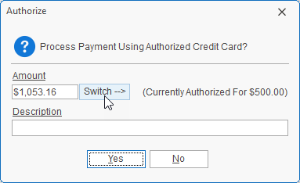
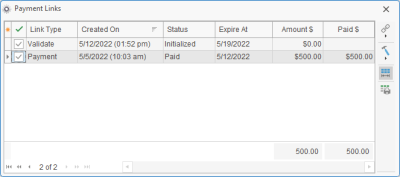
    • Double-click the yellow icon  in the Authorized Credit Card column of the manager’s grid. Note: To display the Authorized Credit Card column, click the Quick Column Customizing button  at the top left of the grid (see Working with Grids.) If the icon is black , the card on file has not been authorized for a specific amount; if there is no icon, no card has been authorized for that record.
  1. Select the authorized card you wish to process, click the Tools button at the top left of the window and choose Process Payment.
    Result: The Authorize window appears.
    Important Note: The amount indicated in this window will default to the balance due of the event. See Step 4, below, to adjust if desired.

  2. [Optional] Click the Switch button to the right of the Amount field to switch the amount to this card’s authorized amount or click in the Amount field and enter an amount at random.
    Result: The authorized amount (or any custom amount you enter) is filled into the Amount field.

  1. Click in the Description field and type an optional description for this payment.

  2. Click Yes to post the payment.

Tracking Payment Information in the Mosaic Portal

Tracking Payment Information in the Mosaic Portal

Click the Administration ribbon tab at the top of your screen and choose Mosaic > Mosaic Customer Portal.
Result: Your browser opens on the login screen for the Mosaic Customer Portal.

Enter the email address associated to your Mosaic Setup (see Setting Up Mosaic Payment Processing) and appropriate password and click Log In.
Result: Your company’s customer portal opens.
Note: If you have not yet established a password for this account you will be prompted to do so.

[Optional] At the right side of the portal window, click the down arrow next to Time Period to alternately view details from TodayYesterdayLast 7 Days or Month to Date.

[Optional] To review details of a specific payment, click that payment in the Activity grid.
Note: It is not recommended that you issue a refund from the Mosaic portal, as that refund will not be recorded in your Caterease program.

[Optional] To review specific types of transactions (Fees, Disputes, Deposits, etc.) click the View option associated to that section.

Adding Users to Your Mosaic Portal

Adding Users to Your Mosaic Portal
  1. Log into your Mosaic Portal as an Owner/Administrator using the steps listed above.

  2. Click the Settings button on the left side of the screen.

  1. Scroll down to the Members section and click Add additional members to your account.

  2. At the top of the screen, enter the email address of the new user you want to add and click Invite.
    Result: The new users is added to the user list with a status of “Pending” and an invitation is sent to the email address you provided.

  3. Instruct the new user to click Join in the email invitation and fill out the information (First/Last Name, Password) on the Sign Up form.
    Result: Once the new user fills out the Sign Up form, he or she will be logged into the Mosaic Portal.

Tip: Only an Administrator can invite new users to access the portal. All new users will have a Moderator roll.

Removing a User from the Mosaic Portal

Removing a User from the Mosaic Portal
  1. Log into your Mosaic Portal as an Owner/Administrator using the steps listed above.

  2. Click the Settings button on the left side of the screen.

  1. Scroll down to the Members section and click Add additional members to your account.
  2. Click the Delete button  to the right of any user name.
    Result: The corresponding user is removed.
    Note: Users other than the Administrator can only remove themselves from the list.